How to Transfer Data From Old Phone to New Android Phone(part 3)
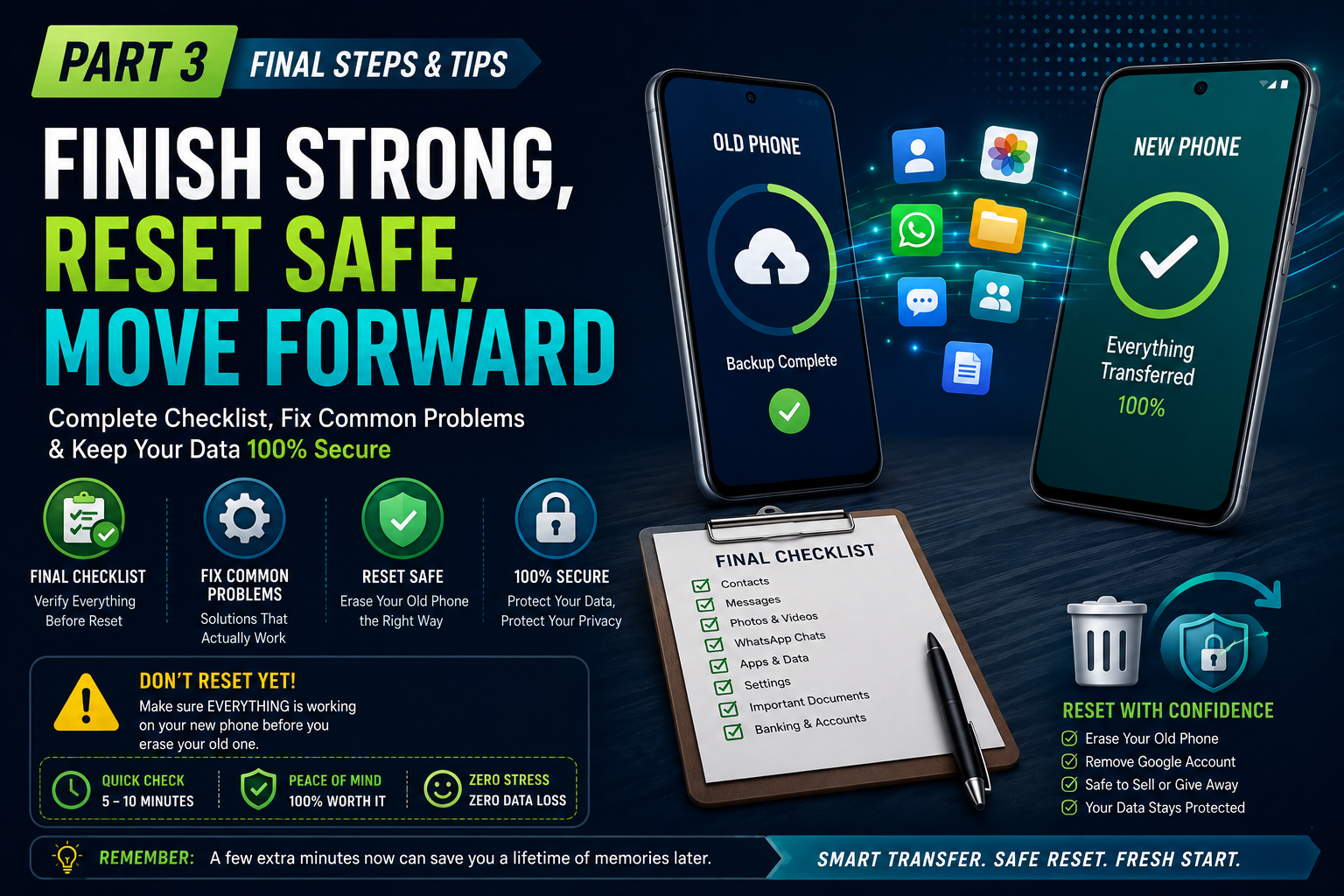
Post-Transfer Checklist (Don’t Skip This!)
Congratulations! Your new phone is almost ready.
But before you celebrate and factory reset your old phone, spend five minutes checking that everything actually made it across.
This is the step most people skip—and it’s exactly how important memories, documents, and messages get lost forever.
I still think about the mistake I made with my dad’s phone. If I had taken just a few minutes to verify everything, we wouldn’t have lost years of family conversations.
Learn from my mistake.
Final Checklist Before Factory Resetting Your Old Phone
Go through each item one by one.
Accounts & Apps
☐ Google account is signed in
☐ Email is syncing properly
☐ Banking apps open correctly
☐ Social media accounts are logged in
☐ Authenticator apps are working
Contacts & Messages
☐ All contacts are present
☐ SMS messages transferred
☐ Recent call history appears
☐ WhatsApp chats restored
Photos & Files
☐ Google Photos shows every picture
☐ Gallery contains recent photos
☐ Videos play correctly
☐ Downloads folder transferred
☐ Important PDFs and documents are available
Device Settings
☐ Wi-Fi reconnects automatically
☐ Bluetooth devices pair successfully
☐ Fingerprint added
☐ Face Unlock configured
☐ Wallpaper restored
☐ Home screen looks correct
Payment & Security
☐ Google Wallet cards added again
☐ Banking apps verified
☐ Screen lock enabled
☐ Find My Device activated
Golden Rule: If even one important item is missing, don’t erase your old phone yet.
Safe to Reset?
Ask yourself these questions.
✔ Can you make a phone call?
✔ Can you send a text message?
✔ Can you open WhatsApp?
✔ Can you see your photos?
✔ Are your important apps working?
If the answer is yes to all of them, you’re finally ready to erase the old phone.
How to Factory Reset Your Old Android Phone
Once you’ve confirmed everything transferred successfully:
- Open Settings
- Tap System
- Select Reset Options
- Tap Erase All Data (Factory Reset)
- Confirm your PIN or password
- Wait for the phone to erase itself
Your personal information will be removed, making the phone safe to sell, recycle, or give to someone else.
Pro Tip: Remove your Google account before selling the phone. This disables Factory Reset Protection (FRP) and makes setup easier for the next owner.
Common Transfer Problems (And How to Fix Them)
Even when everything is done correctly, small issues can still appear.
Here’s how to solve the ones I see most often.
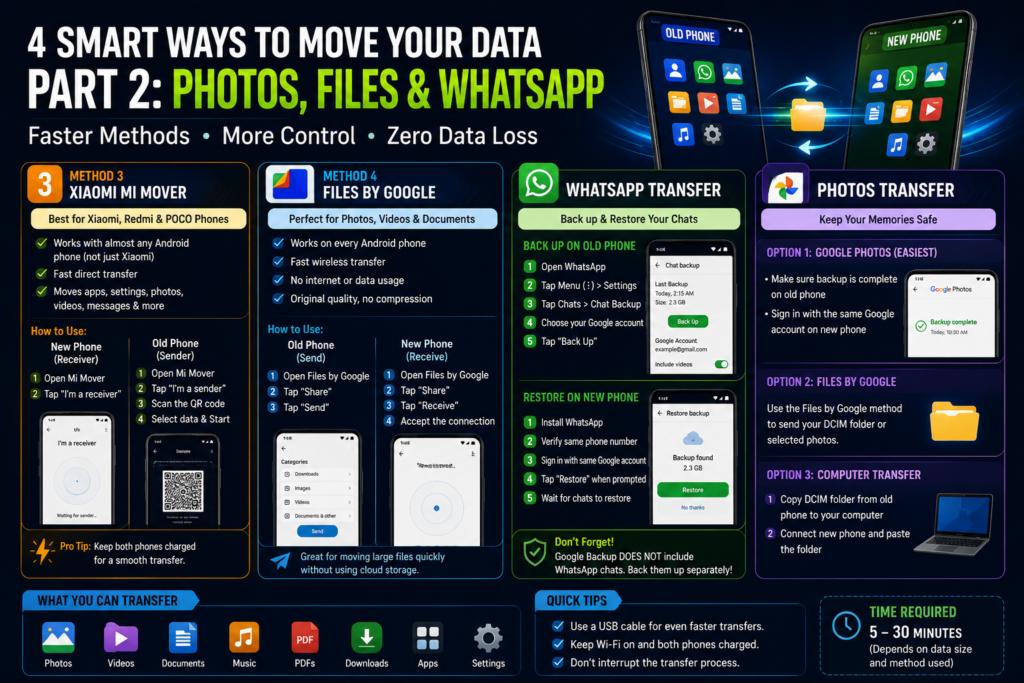
Problem 1: WhatsApp Can’t Find My Backup
Possible Cause
You’re signed into the wrong Google account.
Fix
- Open Settings
- Remove the incorrect Google account
- Add the Google account that created the WhatsApp backup
- Reinstall WhatsApp
- Verify your phone number again
The Restore button should now appear.
Problem 2: Some Apps Didn’t Transfer
This usually isn’t a bug.
Google restores apps in the background, and sometimes it takes longer than expected.
Fix
- Open Play Store
- Tap your profile picture
- Select Manage Apps & Device
- Tap Manage
- Filter by Not Installed
- Install anything that’s missing
Problem 3: SMS Messages Are Missing
Unfortunately, SMS restoration only works during the initial Android setup.
If you skipped it, Android won’t let you restore them later.
Fix
The only solution is:
- Factory reset the new phone
- Repeat the setup process
- Restore from Google Backup again
That’s why it’s so important not to rush the initial setup.
Problem 4: Photos Aren’t Showing Up
Don’t panic.
Most of the time, the upload simply wasn’t finished on the old phone.
Fix
On the old phone:
Google Photos
↓
Tap your profile picture
↓
Check the Backup Status
If it doesn’t say Backup Complete, wait until the upload finishes before trying again.
Problem 5: Duplicate Contacts
Seeing every contact twice?
That’s surprisingly common.
Fix
Open:
Contacts
↓
Settings
↓
Merge Duplicates
Android usually fixes everything in a few seconds.
Problem 6: Wi-Fi Passwords Didn’t Transfer
Google Backup usually restores saved Wi-Fi networks, but it doesn’t always happen.
Fix
Simply reconnect to each Wi-Fi network manually.
Once entered, Android will remember the password again for future use.
Tips for a Faster Transfer
If you’re moving a lot of data, these small tricks can save quite a bit of time.
✔ Use a USB cable instead of wireless whenever possible.
✔ Keep both phones plugged into chargers.
✔ Connect to a fast Wi-Fi network.
✔ Close unnecessary apps before starting.
✔ Don’t use either phone heavily during the transfer.
✔ Leave both screens on if your phone aggressively closes background tasks.
Frequently Asked Questions
Can I transfer data after setting up my new phone?
Sometimes.
Photos, files, and documents can still be copied later, but SMS messages and certain system settings usually need to be restored during the initial setup.
Will all my apps transfer automatically?
Most apps will reinstall automatically through Google Backup.
However, you’ll usually need to sign back into banking apps, payment apps, and some games.
Do I need internet to transfer data?
It depends.
Google Backup requires an internet connection.
Brand-specific tools like Smart Switch or Mi Mover can transfer data directly between phones, especially when using a cable.
How long does Android data transfer take?
For most people:
- 10–15GB: 15–30 minutes
- 30–60GB: 30–60 minutes
- 100GB+: 1–3 hours
The exact time depends on your internet speed, storage size, and transfer method.
Will my photos lose quality?
No.
Google Photos preserves your chosen backup quality, while direct methods like Files by Google or a USB cable keep the original files unchanged.
What happens if the transfer is interrupted?
Don’t panic.
Simply reconnect both phones and restart the transfer.
Most modern transfer tools continue from where they left off instead of starting over.
Final Thoughts
Switching to a new Android phone has become much easier than it was a few years ago, but that doesn’t mean it’s completely foolproof.
The biggest mistakes usually happen because people are excited to use their new device and rush through the setup screens.
Take your time.
Double-check every important app.
Make sure your photos are there.
Open WhatsApp and scroll through your conversations.
Verify your contacts, messages, and documents.
Only when you’re completely confident that everything has transferred should you erase your old phone.
Those extra ten minutes could save memories, work files, and conversations that simply can’t be replaced.
Related Guides You Might Like
If this guide helped you, you may also find these articles useful:
- How to Free Up Storage on Android Without Deleting Apps
- How to Speed Up an Android Phone Without Root
- How to Save Battery on Android – 15 Tips That Actually Work
- How to Fix Wi-Fi Not Connecting on Android
- How to Download YouTube Videos on Android (Safely)
- Best Free Photo Editing Apps for Android