How many photo editing apps do you already have installed?
One?
Three?
Maybe six?
Now ask yourself another question…
How many do you actually use?
Most of us download every app that promises “AI Photo Editor” or “One-Tap Professional Photos,” edit two pictures, then never open it again.
I was exactly the same.
For nearly a year, I edited every Instagram photo using nothing but my phone’s built-in Gallery app.
Crop.
Increase saturation.
Sharpen.
Done.
I genuinely believed my phone’s camera just wasn’t very good.
Then a friend who creates content full-time looked through my photos and said:
“Why aren’t you using Snapseed?”
I downloaded it that evening.
Five minutes later…
…my photos looked better than they ever had.
Not because I bought a better phone.
Not because I became a better photographer.
Simply because I finally started using the right editing tools.
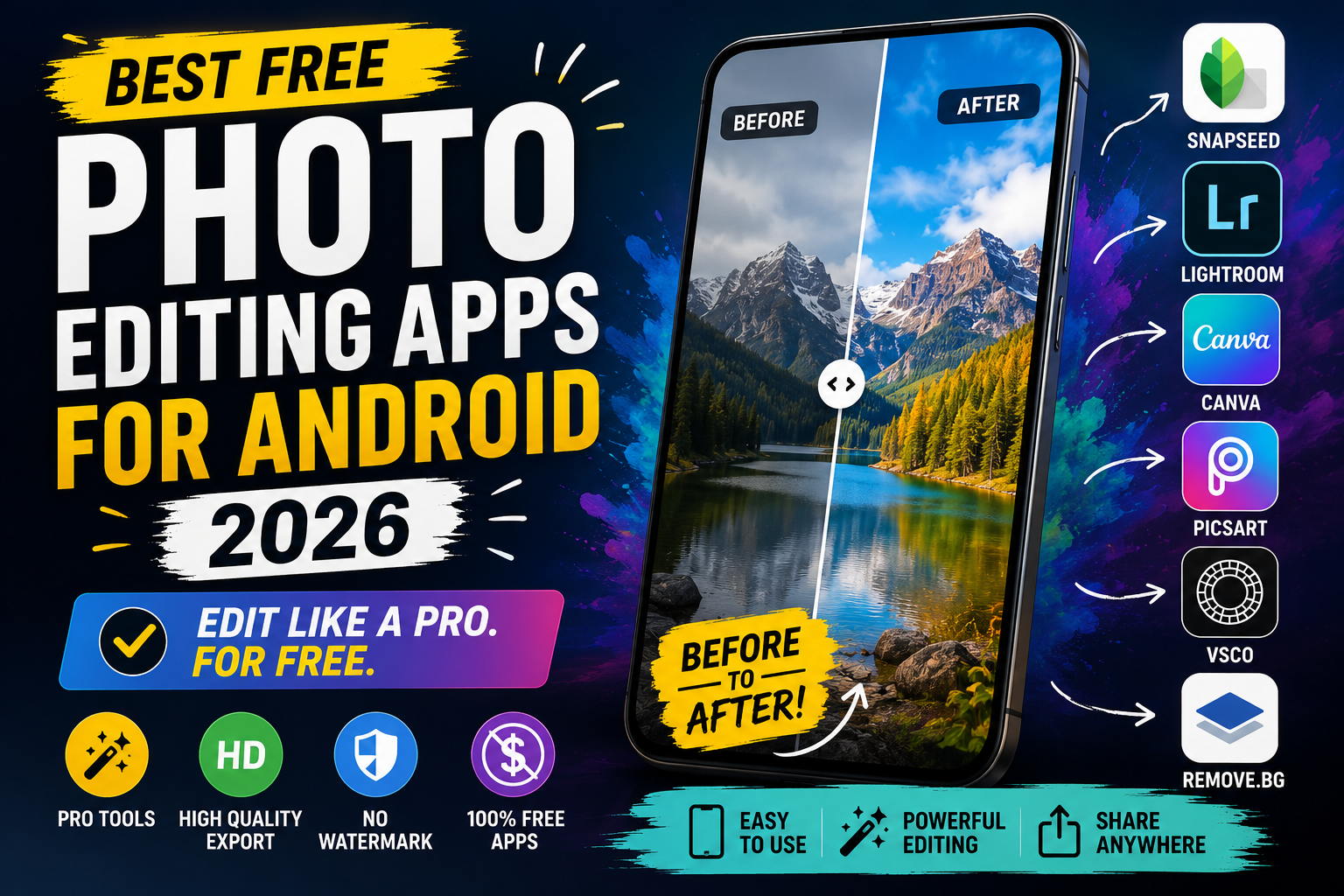
If you’re wondering which free Android photo editor is actually worth installing in 2026, this guide will save you hours of downloading and deleting apps.
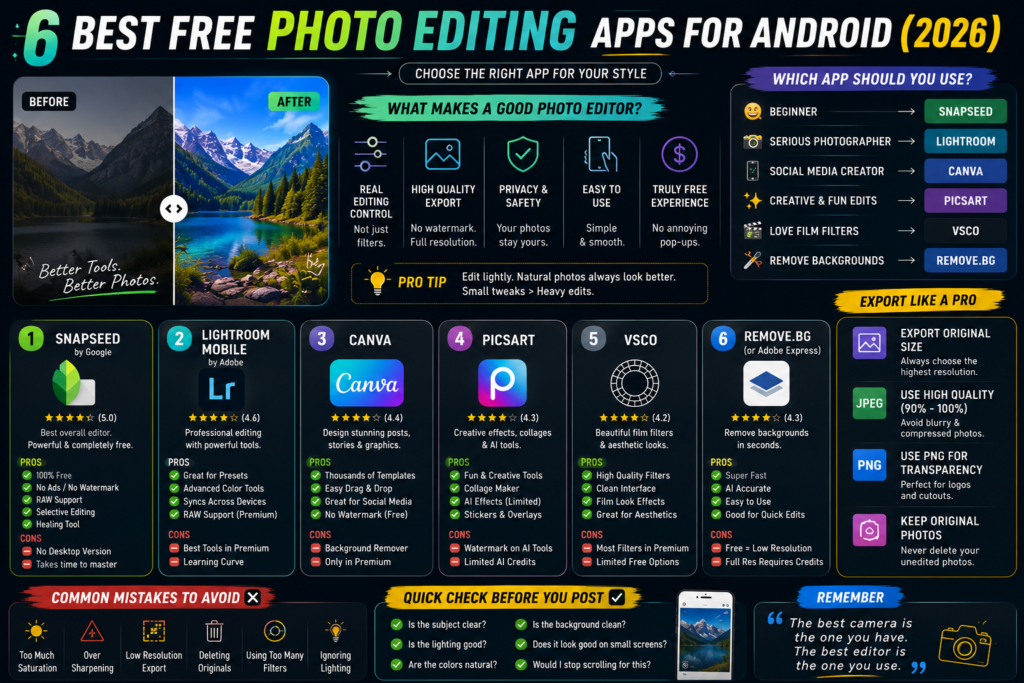
📌 Quick Recommendation
If you want…
Use…
Best completely free editor
⭐ Snapseed
Professional editing
⭐ Lightroom Mobile
Instagram posts & Stories
⭐ Canva
Creative effects
⭐ PicsArt
Beautiful filters
⭐ VSCO
Remove backgrounds
⭐ Remove.bg / Adobe Express
Before You Download Any App…
Here’s something I wish someone had told me years ago.
A photo editor isn’t good because it has 300 filters.
It’s good because it gives you control.
When testing these apps, I looked for five things.
✅ No annoying watermarks
✅ High-quality exports
✅ Useful free features
✅ Easy interface
✅ Minimal pressure to buy Premium
Because let’s be honest…
Some “free” apps spend more time asking you to subscribe than letting you edit your photos.
💡 Quick Test
If an app shows three Premium pop-ups before you’ve edited one photo…
Adobe keeps some of its strongest tools behind Premium.
That includes:
❌ Healing Brush
❌ AI Masking
❌ Full RAW workflow
❌ Geometry corrections
If you’re planning to build an Instagram page with a consistent look…
Lightroom is difficult to beat.
🎨 Did You Know?
Thousands of creators use free Lightroom presets downloaded from the internet.
You don’t have to create every edit yourself.
3. Canva — More Than Just a Photo Editor
⭐⭐⭐⭐☆
People often compare Canva with Snapseed.
Honestly…
They do completely different jobs.
Snapseed edits photos.
Canva turns photos into finished designs.
Need to make:
📱 Instagram Stories
📱 YouTube thumbnails
📱 Facebook posts
📱 Pinterest Pins
📱 Business flyers
Canva is brilliant.
Best Workflow
I actually use both.
Snapseed first.
↓
Canva second.
Edit your photo.
Then add text.
Simple.
Free Version Includes
✔ Thousands of templates
✔ Social media sizes
✔ Basic editing
✔ Good exports
Premium Needed For
❌ Background remover
❌ Magic Resize
❌ Premium graphics
4. PicsArt — Best for Creative Editing
⭐⭐⭐⭐☆
This app is pure fun.
Double exposure.
Stickers.
Collages.
AI images.
Neon effects.
Sketch filters.
If you’re creating content for TikTok or Instagram…
You’ll probably enjoy it.
The Catch
Free AI credits disappear quickly.
Some AI exports also include watermarks.
So don’t expect unlimited free editing forever.
5. VSCO — Beautiful Film Filters
⭐⭐⭐⭐☆
Ever wondered how some Instagram feeds have that soft, cinematic look?
There’s a good chance VSCO was involved.
Its filters are genuinely excellent.
Especially if you like:
🎞 Film photography
🎞 Soft colours
🎞 Vintage style
🎞 Moody edits
Unfortunately…
Most of the famous presets require Premium.
The free version gives you a taste rather than the whole experience.
6. Remove.bg — Remove Backgrounds in Seconds
⭐⭐⭐⭐☆
Need to remove a background?
This tool is ridiculously fast.
Upload.
Wait three seconds.
Done.
Perfect for:
✔ Product photos
✔ Profile pictures
✔ Memes
✔ School projects
The only downside?
Free downloads are low resolution.
Fine for social media.
Not great for printing.
💡 Alternative
Adobe Express currently offers free background removal at a better resolution for many users.
Which App Should You Actually Download?
Let’s make this easy.
If you are…
📸 A beginner
➡ Snapseed
🎨 A photographer
➡ Lightroom
📱 A social media creator
➡ Canva
✨ Love creative edits
➡ PicsArt
🎞 Love film-style filters
➡ VSCO
🪄 Need background removal
➡ Remove.bg
My Phone Right Now
People often ask me:
“Which editing apps do you actually keep installed?”
Only these four.
📷 Snapseed
🎨 Lightroom
🖼 Canva
✨ PicsArt
Everything else gets deleted after testing.
Keeping fewer apps actually makes editing much faster.
Don’t Ruin Your Photos During Export
You spent ten minutes editing.
Don’t lose quality in the last ten seconds.
Always:
✔ Export at Original Size
✔ Highest JPEG Quality
✔ PNG for transparent images
✔ Keep the original photo
Trust me…
You’ll thank yourself later.
Common Mistakes Beginners Make
❌ Using every filter at once
❌ Increasing saturation too much
❌ Exporting low resolution
❌ Deleting original photos
❌ Trusting AI edits too much
❌ Installing five apps that all do the same thing
🎯 Which App Fits Your Style?
Answer these quick questions.
I mostly post selfies
👉 Snapseed
I run a business
👉 Canva
I edit travel photos
👉 Lightroom
I create TikToks
👉 PicsArt
I love cinematic colours
👉 VSCO
I sell products online
👉 Remove.bg
Final Thoughts
You don’t need ten editing apps.
You don’t need a flagship phone.
And you definitely don’t need an expensive subscription to make your photos look great.
If you’re just starting out, Snapseed remains the easiest recommendation because it’s powerful, genuinely free, and doesn’t constantly interrupt you with upgrade prompts.
As your editing skills grow, Lightroom is a natural next step for more advanced control. If you’re creating content for social media, pairing Snapseed with Canva gives you an excellent free workflow.
The best editing app isn’t the one with the most filters—it’s the one you’ll actually keep using. Start with one, learn it well, and your photos will improve far more than they would by downloading every editor on the Play Store.
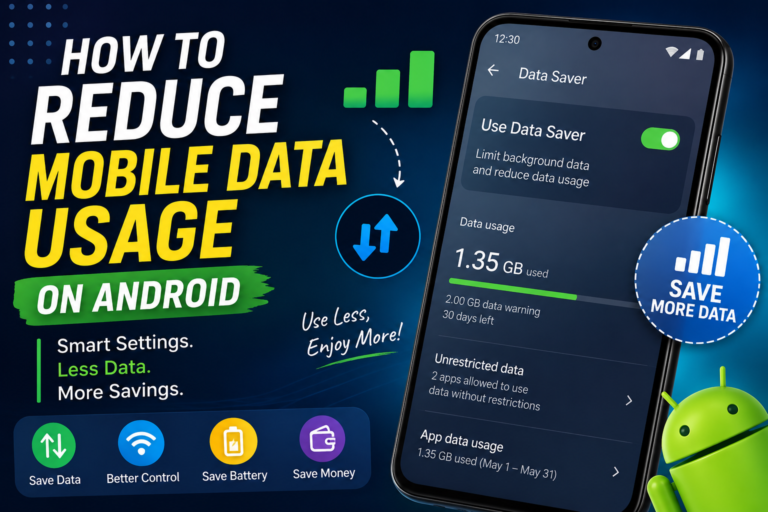
Turn On Data Saver Mode (The “Set It and Forget It” Fix) If you don’t want to micromanage every single app, Android has a much easier solution: Data Saver Mode. Think of it as a security guard for your mobile data. Instead of checking every app individually, it automatically blocks most apps from quietly using…
I installed Windows 11 the wrong way the first time. Downloaded a random ISO from some sketchy site, spent two hours creating a bootable USB with a tool I didn’t fully trust, and ended up with an installation that couldn’t get proper updates for weeks. Second time, I did it the official way through Microsoft’s…
Two years ago my Redmi phone got so slow that opening WhatsApp took a solid 4-5 seconds. I remember sitting in a rickshaw, trying to reply to a client, and just staring at a frozen screen while the guy asked me for directions. That’s the moment I decided I wasn’t going to just “live with…
My phone refused to connect to my home WiFi at 11 PM, the night before an important deadline. Every other device in the house was online—my laptop, my brother’s phone, even the smart TV—but my phone stubbornly displayed “Authentication Problem.” I spent almost 45 minutes changing random settings before discovering that the actual solution took…
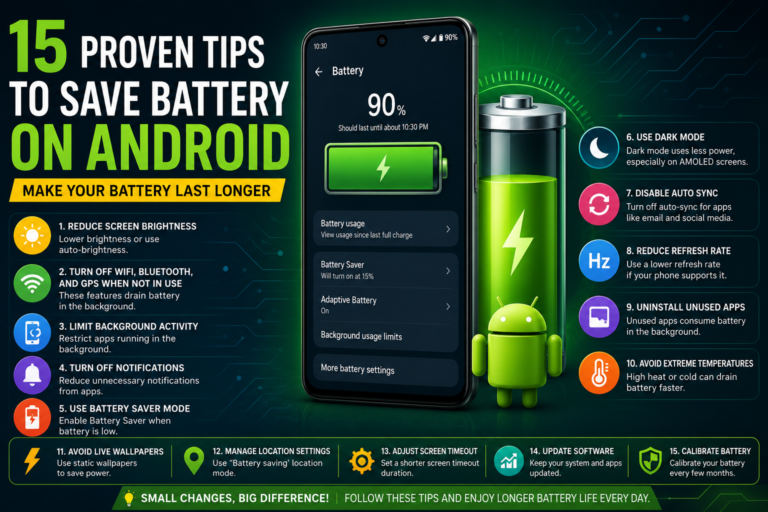
I used to be that person constantly scanning rooms for a wall socket. Every friend’s house, every office, every wedding hall, I’d clock the nearest outlet within thirty seconds of walking in. My battery anxiety was genuinely bad enough that I carried two power banks in my bag, just in case one died. What actually…
Last semester, my younger cousin was trying to submit an assignment through a US-based research portal his university had shared, and it just wouldn’t load properly from here. He messaged me at 11 PM panicking because the deadline was in a few hours. I told him to install a VPN, and within two minutes the…