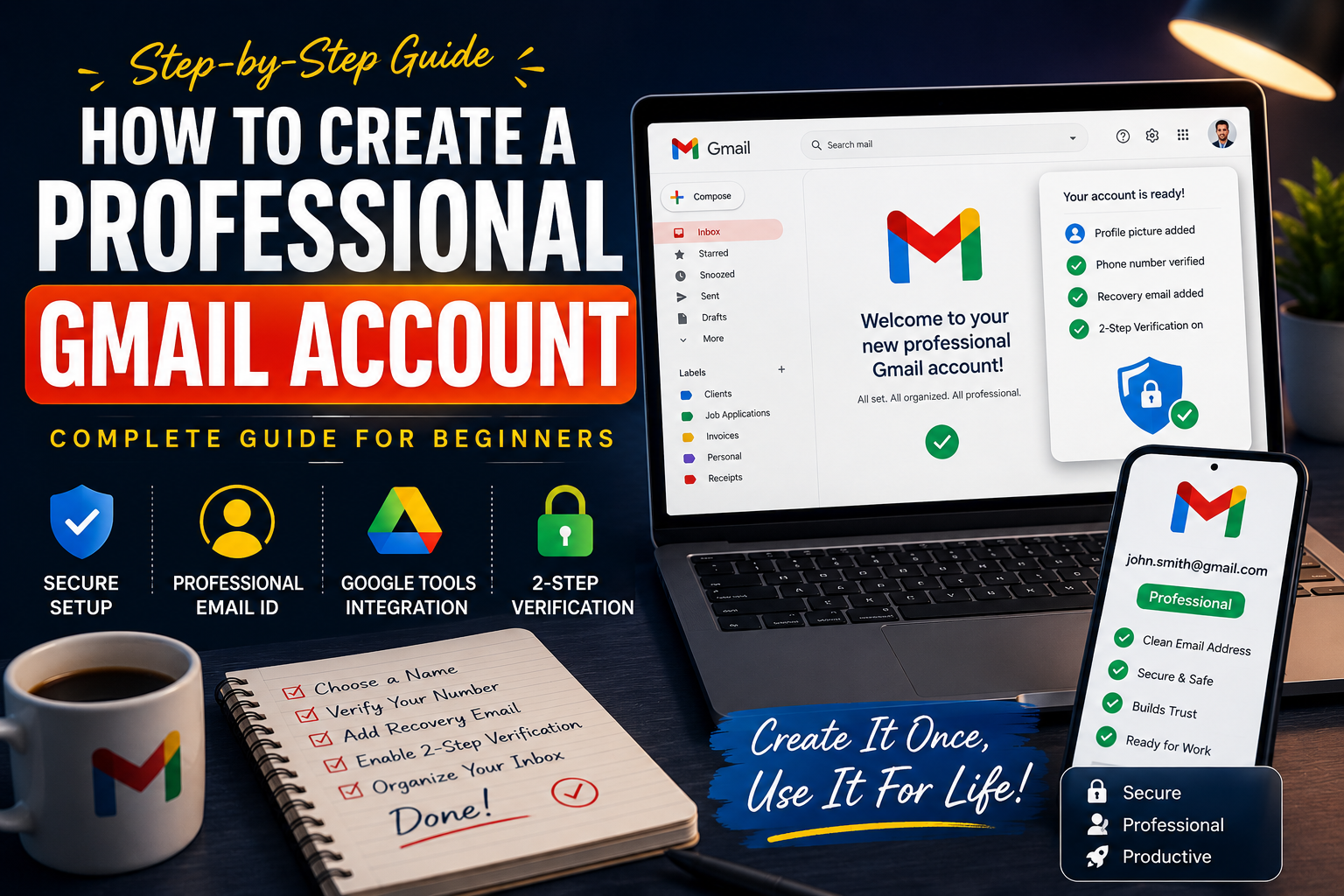
How to Create a Professional Gmail Account (Step-by-Step Guide)
Is Your Email Helping You Get Hired… or Holding You Back?
Take a second and look at your current email address.
Is it something like:
❌ princess_angel2007@gmail.com
If the answer is yes…
You’re not alone.
I once applied for a freelance project using an email address I’d created back in Year 8.
It looked something like:
The client replied politely:
“Is this the email you’ll be using for invoices?”
I knew exactly what they meant.
I didn’t get the project.
That one email address made me realise something…
Sometimes people judge you before they’ve even opened your CV.
Five minutes later, I created a professional Gmail account—and I’ve used that same address for every client, university application and job opportunity ever since.
If you’re creating your first professional email—or finally retiring an embarrassing one—this guide will show you exactly how to do it properly.
📌 Quick Summary
If you’re in a hurry:
✅ Use your real name
✅ Avoid nicknames
✅ Enable 2-Step Verification
✅ Add a recovery email
✅ Upload a professional profile picture
✅ Organise your inbox with labels
⏱ Time Required
Around 10 minutes
Difficulty
⭐ Beginner
Why Choose Gmail?
Imagine you’re applying for a job.
Which email inspires more confidence?
A
john.smith@gmail.comor
B
dragonkiller999@gmail.comMost employers won’t admit it…
…but first impressions start long before the interview.
That’s why Gmail is still the safest choice.
It isn’t just because it’s free.
It’s because almost every employer, recruiter and business already uses Google services.
With one account you also get:
- Google Drive
- Google Docs
- Google Meet
- Google Calendar
- Google Photos
Everything works together automatically.
💡 Did You Know?
More than 2 billion people use Gmail worldwide, making it the most widely recognised email service.
Step 1 — Choose a Professional Email Address
This is where most people make mistakes.
Your email address is often the first thing someone sees.
Think of it like a digital handshake.
✅ Good Examples
john.smith@gmail.com

emmawilson@gmail.com

lucas.jones.design@gmail.com

sarahgreen.uk@gmail.com
❌ Avoid These
cuteboy2005@gmail.com

xXShadowGamerXx@gmail.com

princessangel999@gmail.com

footballking2001@gmail.com
If Your Name Is Already Taken
Don’t panic.
Instead of random numbers, try something meaningful.
Instead of
johnsmith785437Try
john.smith.uk

john.smith.design

john.smith.dev

john.a.smith
Much cleaner.
Much easier to remember.
Much more professional.
⚠️ Avoid This Mistake
Don’t add your birth year unless absolutely necessary.
An employer doesn’t need to know you were born in 1998 just by looking at your email.
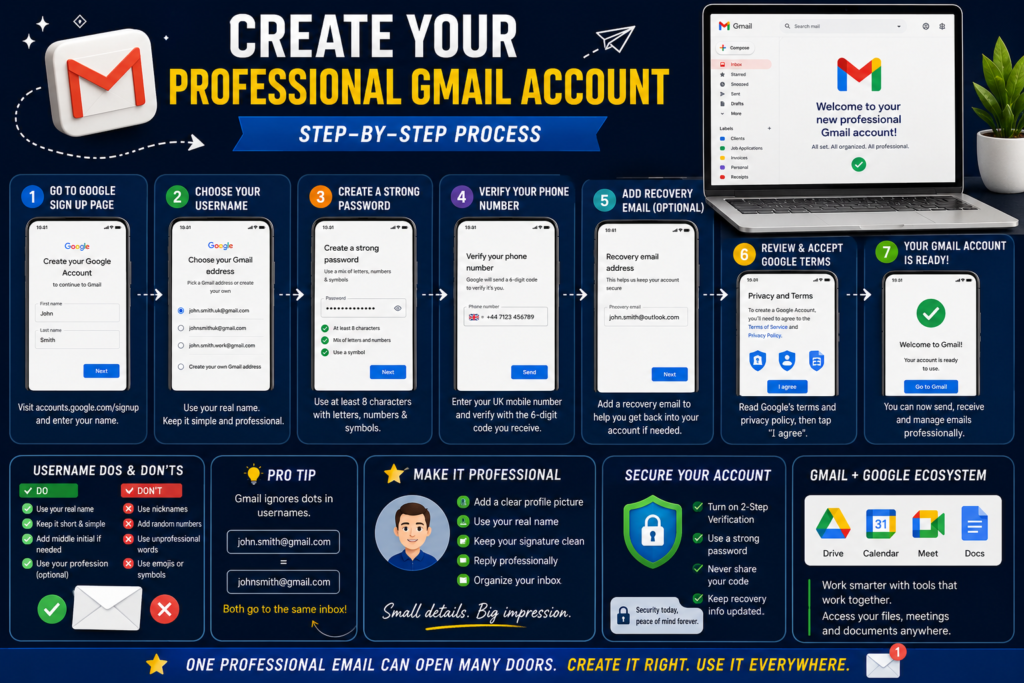
Step 2 — Create Your Gmail Account
Creating a Gmail account takes less than five minutes.
On Android
- Open Settings
- Tap Accounts
- Select Google
- Tap Create account
- Choose For myself
- Enter your details
- Pick your Gmail address
- Create a strong password
- Verify your phone number
- Accept Google’s Terms
On a Computer
- Visit accounts.google.com/signup
- Enter your name
- Choose your email
- Create a password
- Click Next
- Verify your number
- Finish the setup
Done.
Your inbox is ready.
✅ Quick Check
Before moving on, ask yourself:
✔ Does my email include my real name?
✔ Is it easy to spell?
✔ Would I feel comfortable putting it on my CV?
If yes…
You’re already ahead of many people.
Why Phone Verification Matters
Some people skip this.
Don’t.
Imagine forgetting your password two years from now.
Without a verified phone number…
Your professional email could be gone forever.
Google uses your phone to:
- Recover your account
- Detect suspicious logins
- Protect against hackers
- Enable two-factor authentication
Think of it as insurance.
You hope you never need it…
…but you’ll be glad it’s there.
Add a Professional Profile Picture
Here’s a quick experiment.
Which email looks more trustworthy?
👤 Blank grey icon
or
😊 A clear, friendly headshot
Exactly.
A professional photo instantly makes your emails feel more genuine.
You don’t need expensive photography.
A clean background.
Good lighting.
Smile naturally.
That’s enough.
Turn On 2-Step Verification
This is probably the most important step in the entire guide.
Imagine losing access to:
- Job applications
- Client invoices
- University emails
- Google Drive
- Important documents
All because someone guessed your password.
Don’t let that happen.
Enable 2-Step Verification.
It takes about three minutes.
It could save years of work.
🔒 Pro Tip
Use Google Authenticator instead of SMS whenever possible.
It’s generally more secure.
Organise Your Inbox Like a Professional
Imagine opening Gmail and seeing this:
📩 6,200 unread emails.
No folders.
No labels.
No idea where anything is.
That’s stressful.
Instead…
Create labels like:
📁 Clients
📁 Job Applications
📁 University
📁 Receipts
📁 Bills
Now everything has a place.
Automate Your Inbox
Here’s something many people don’t know.
You can tell Gmail:
“Every email from this client goes into the Client folder automatically.”
That’s what Filters do.
Once they’re set up…
You don’t need to organise emails manually anymore.
💡 Little Trick
Gmail supports + addressing.
Example:
johnsmith+shopping@gmail.comStill arrives in your normal inbox—but makes filtering much easier.
Connect Gmail to the Apps You Already Use
A professional Gmail account isn’t just for sending emails.
It becomes your digital workspace.
You can connect it to:
- Google Calendar
- Google Drive
- Google Meet
- Google Docs
- Canva
- Notion
- Trello
- Zoom
- Calendly
- Microsoft Outlook
Everything stays connected.
Everything stays organised.
Common Mistakes People Make
❌ Using a nickname
❌ Using random numbers
❌ No recovery email
❌ Weak password
❌ No profile picture
❌ No 2-Step Verification
❌ Never organising the inbox
Avoid these…
…and you’ll already look more professional than many applicants.
Which Email Looks More Professional?
Choose one.
A
emily.johnson@gmail.comB
cutieprincess123@gmail.comIf you picked A…
You’re thinking like a recruiter.
Final Thoughts
Creating a professional Gmail account isn’t difficult.
But it can quietly improve how employers, clients and colleagues see you.
Your email address appears on:
- Your CV
- Business cards
- Freelance proposals
- Job applications
- Client invoices
It’s worth getting it right.
The best time to create a professional Gmail account was years ago.
The second-best time is today.