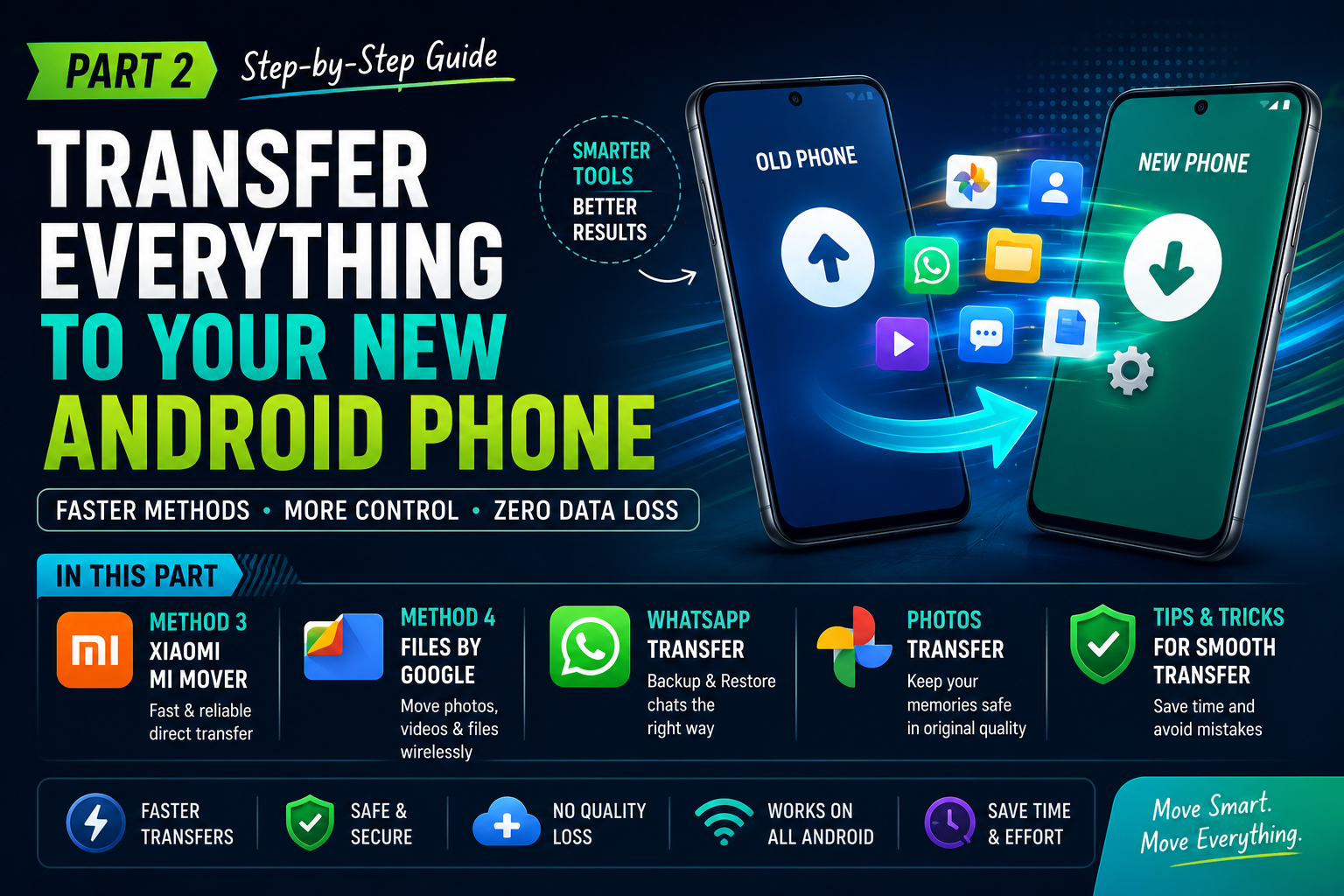
How to Transfer Data From Old Phone to New Android Phone(part 2)
This is Part 2 of our phone migration series. If you haven’t already, start with Part 1, which covers Google Backup and Samsung Smart Switch, before continuing here.
Method 3: Xiaomi Mi Mover (Best for Xiaomi, Redmi & POCO Phones)
Difficulty: ★☆☆☆☆
Time Required: 15–30 minutes
Works With: Xiaomi, Redmi and POCO devices
If your new phone is made by Xiaomi, Redmi, or POCO, Mi Mover is the fastest way to transfer almost everything from your old phone.
I recently helped a friend switch from a Samsung Galaxy to a Redmi Note phone. We tried Google Backup first, but Mi Mover copied everything—including apps and settings—in nearly half the time.
The best part? It works with almost any Android phone, not just Xiaomi devices.
Why Choose Mi Mover?
Choose Mi Mover if:
✅ Your new phone is Xiaomi, Redmi, or POCO
✅ You want a faster transfer than cloud backup
✅ You have lots of photos and videos
How to Transfer Using Mi Mover
On the New Phone
- Open Mi Mover
- Tap I’m a Receiver
On the Old Phone
- Open or install Mi Mover
- Tap I’m a Sender
- Scan the QR code shown on the new phone
- Select the data you want
- Tap Start
Within a few minutes, both phones will connect directly and begin transferring data.
Why This Works
Unlike Google Backup, Mi Mover creates a direct connection between both phones.
That means:
✔ Faster transfer speeds
✔ No cloud upload required
✔ Better transfer of device settings
✔ Less waiting
Pro Tip: Keep both phones plugged into a charger if you’re transferring more than 30GB of data.
Method 4: Files by Google (Perfect for Photos, Videos & Documents)
Difficulty: ★☆☆☆☆
Time Required: 5–20 minutes
Works With: Every Android phone
Sometimes you don’t need to move everything.
Maybe you only want your vacation photos.
Maybe you only care about work documents.
That’s where Files by Google shines.
Instead of uploading everything to the cloud, it creates a direct wireless connection between two phones.
It’s surprisingly fast.
I’ve transferred over 8GB of photos in less than ten minutes using it.
Best For
✅ Photos
✅ Videos
✅ PDFs
✅ Downloads
✅ Music
✅ Documents
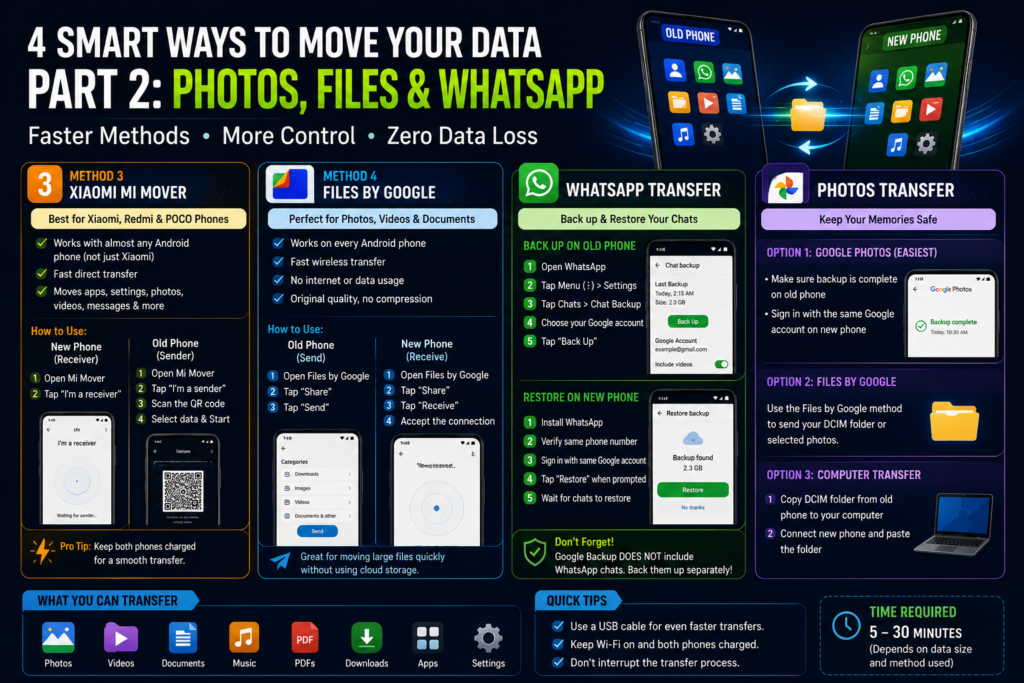
How to Use Files by Google
On Both Phones
- Install Files by Google
- Open the app
Old Phone
- Tap Share
- Choose Send
New Phone
- Tap Share
- Select Receive
- Accept the connection
- Wait for pairing
Now choose the files you want and press Send.
That’s it.
Why This Works
Files are transferred directly between phones using a high-speed wireless connection.
Nothing is uploaded to the internet.
No cloud storage required.
No compression.
Original quality stays intact.
Don’t Skip This Step 🚨
WhatsApp Chats Need Their Own Backup
This is where most people lose years of memories.
Many people assume Google Backup automatically saves WhatsApp chats.
It doesn’t.
WhatsApp uses its own backup system, which means you must back it up separately before switching phones.
I’ve seen people lose family photos, university notes, work conversations, and years of chat history simply because they skipped this step.
Don’t make the same mistake.
How to Back Up WhatsApp
On Your Old Phone
- Open WhatsApp
- Tap the three dots
- Go to Settings
- Tap Chats
- Select Chat Backup
- Choose your Google account
- Tap Back Up
If you want your videos too, enable Include Videos.
Keep in mind this will make the backup much larger.
Restore WhatsApp on the New Phone
- Install WhatsApp
- Verify the same phone number
- Sign into the same Google account
- Tap Restore
Wait until your chats finish restoring before opening WhatsApp.
Photos and videos will continue downloading afterward.
Common WhatsApp Mistakes
❌ Using a different Google account
❌ Changing your phone number first
❌ Skipping the Restore screen
❌ Deleting the old phone too early
Why This Works
WhatsApp stores your chat history separately from Android’s system backup.
Unless WhatsApp itself finds your backup, your conversations won’t return.
Luckily, WhatsApp backups no longer count toward your free Google Drive storage, so there’s really no reason not to back them up.
How to Transfer Photos Without Losing Quality
Photos are usually the biggest concern when switching phones.
This is the safest method for very large photo libraries. If your old phone is running low on space before you even start this process, it’s worth doing a quick cleanup first — I covered exactly
where that space usually goes in my Android storage guide.
Option 1: Google Photos ⭐ (Recommended)
If Google Photos Backup is already enabled, you’re almost done.
Simply sign into the same Google account on your new phone.
Your entire photo library will appear automatically.
Before Switching Phones
Open:
Google Photos
↓
Profile Picture
↓
Settings
↓
Backup
↓
Check that Backup Complete appears.
If it doesn’t, wait until every photo finishes uploading.
Option 2: Files by Google
If you don’t want to use cloud storage:
- Connect both phones
- Open Files by Google
- Send your DCIM folder
- Wait for the transfer
No internet required.
No compression.
Original image quality remains untouched.
Option 3: Computer Transfer
If you have thousands of photos:
- Connect the old phone to a computer.
- Copy the DCIM folder.
- Disconnect the old phone.
- Connect the new phone.
- Paste the folder.
This is the safest method for very large photo libraries.
Which Method Should You Choose?
| Situation | Best Choice |
|---|---|
| New Samsung phone | Samsung Smart Switch |
| New Xiaomi phone | Mi Mover |
| Any Android phone | Google Backup |
| Photos only | Files by Google |
| Huge photo library | Computer |
Quick Tips Before Moving On
Before wiping your old phone, make sure you’ve transferred:
✅ Photos
✅ Videos
✅ Downloads
✅ PDFs
✅ Important documents
✅ Authenticator apps
✅ Banking apps
In Part 3, we’ll go through the final safety checklist before resetting your old phone, fix the most common transfer problems, answer the questions readers search for on Google, and wrap everything up with practical advice to ensure you don’t lose any important data.