How to Speed Up Your Android Phone (Without Buying a New One)
Two years ago my Redmi phone got so slow that opening WhatsApp took a solid 4-5 seconds. I remember sitting in a rickshaw, trying to reply to a client, and just staring at a frozen screen while the guy asked me for directions. That’s the moment I decided I wasn’t going to just “live with it” anymore.
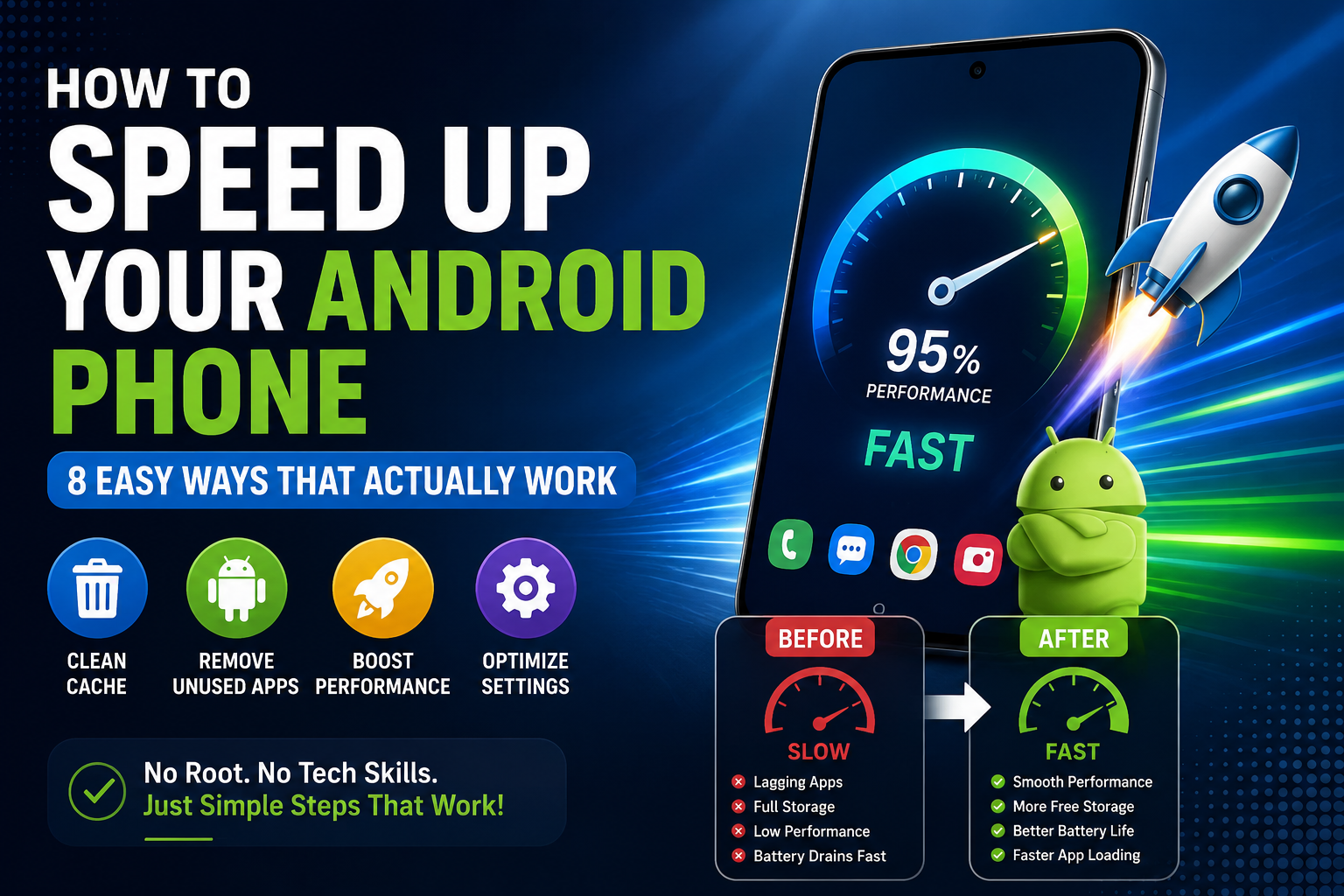
Turns out, you don’t need a new phone every time your Android starts lagging. Most of the time it’s just clutter, bad settings, or habits we don’t even notice. I fixed my own phone using the exact steps below, and I’ve since used the same tricks on my mom’s phone, my cousin’s, and a couple of budget phones for friends. They work.
Let’s go through this properly, no fluff.
📌 Quick Summary
✔ Clear app cache regularly
✔ Remove unused apps
✔ Keep at least 10% storage free
✔ Reduce animation speed
✔ Restart your phone weekly
✔ Update apps and Android
⏱ Time Required: 15–20 minutes
In this article:
- Why Android Phones Slow Down
Clear CacheDisable Animations in Developer OptionsUninstall Unused AppsLimit Background App RefreshKeep At Least 10% Storage FreeRestart Your Phone WeeklyUpdate Apps and System SoftwareTips for 2GB RAM Phones
Why Android Phones Slow Down Over Time
Here’s the thing nobody tells you when you buy a phone: it’s fastest on day one, and it’s a slow, steady decline from there. Not because the hardware breaks down, but because of what we do to it.
Every app you install adds background processes. Every update makes apps a bit heavier (Facebook and Instagram are the worst offenders, honestly). Cache files pile up silently. Storage fills up with WhatsApp forwards nobody asked for. And Android itself, over time, has more system files, more logs, more junk sitting in the background.
Add to that: most budget phones (2GB or 3GB RAM) are being sold with apps that are basically designed for 4GB+ phones now. So the phone isn’t dying, it’s just drowning.
The good news is almost all of this is fixable without root access or any technical wizardry.
Clear Cache — What It Actually Is and How to Do It
Cache is basically temporary data apps store so they load faster next time. Sounds helpful, right? It is, until it isn’t. Over months, this cache becomes bloated garbage that does the opposite of what it’s meant to do.
I once checked my phone’s storage and found WhatsApp alone was holding almost 2GB of cache. Two gigabytes! That’s more than the entire storage of some old phones.
Here’s how to clear it:
- Go to Settings
- Tap Apps (or Apps & notifications)
- Tap on the app you want to clean (start with WhatsApp, Facebook, Instagram, Chrome — these are usually the biggest)
- Tap Storage
- Tap Clear Cache (not Clear Data — that deletes your logins and settings, cache is safe.
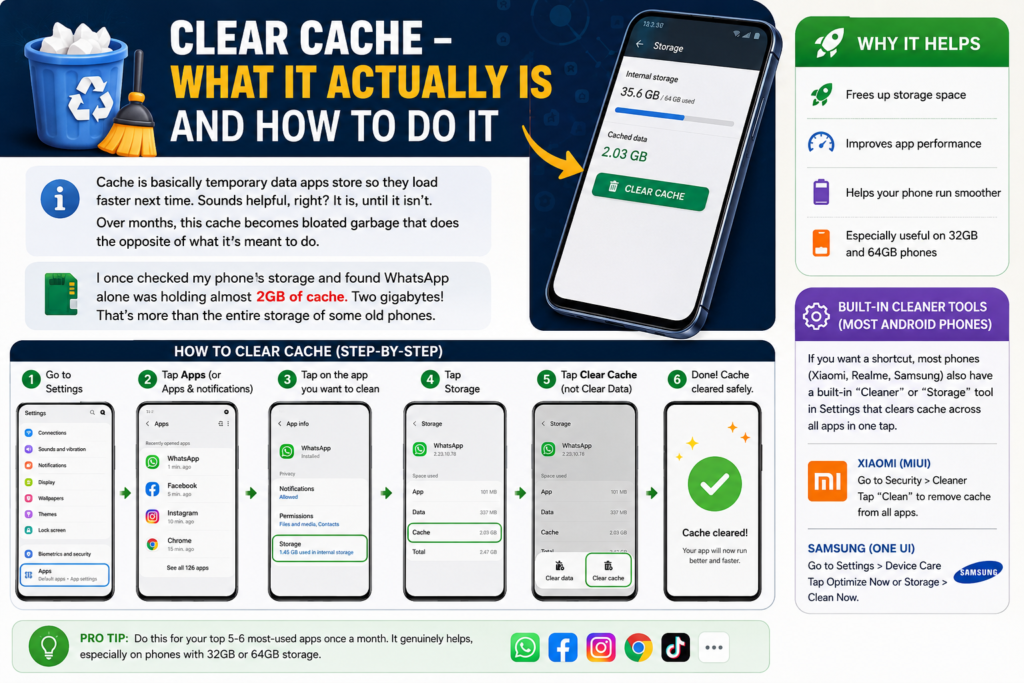
Do this for your top 5-6 most-used apps once a month. It genuinely helps, especially on phones with 32GB or 64GB storage.
If you want a shortcut, most phones (Xiaomi, Realme, Samsung) also have a built-in “Cleaner” or “Storage” tool in Settings that clears cache across all apps in one tap. On MIUI it’s called Cleaner, on Samsung it’s under Device Care.
Disable Animations in Developer Options
This one surprised me the most. It doesn’t actually make your phone faster in raw performance, but it makes it feel dramatically faster, and honestly, feel is half the experience.
Android has transition animations — when you open an app, switch screens, minimize something — these animations take a fixed amount of time (usually set to 1x speed). If you cut that time down, everything feels snappier immediately.
Here’s how:
- Go to Settings > About Phone
- Find Build Number and tap it 7 times (you’ll get a message saying “You are now a developer”)
- Go back to Settings, you’ll now see Developer Options
- Inside, find these three:
- Window animation scale
- Transition animation scale
- Animator duration scale
- Set all three to 0.5x (or turn them off completely for maximum speed)
I did this on my mom’s Oppo phone and she genuinely asked me “did you install something new?” No, I just made the screen transitions faster. That’s it. That’s the whole trick.
Uninstall Unused Apps — Step by Step
Be honest with yourself for a second. How many apps on your phone haven’t been opened in the last 3 months?
For me it was embarrassing — I had two food delivery apps I never used after the first order, a language learning app I opened twice, and three “photo editor” apps that all did the same thing.
Every installed app, even if you never open it, can run background services, sync data, and show notifications that wake up your phone’s processor. It adds up.
Steps to clean up:
- Go to Settings > Apps
- Sort by Last used (some phones show this, or you can check under Storage individually)
- Anything you haven’t touched in 60+ days — ask yourself if you really need it
- Long-press the app icon and tap Uninstall, or go through Settings > Apps > select app > Uninstall
A trick I use: I check Google Play Store’s “Manage apps & device” section — it shows you app sizes and last-opened dates in one clean list. Makes decision-making faster.
Limit Background App Refresh
This is the one that quietly kills battery AND speed at the same time. Apps like Facebook, Instagram, and even some games keep refreshing themselves in the background even when you’re not using them, just so notifications feel “instant.”
On a high-end phone, you don’t feel this. On a 2GB or 3GB RAM phone, this is a killer because that background app is eating RAM that your currently open app needs.
How to limit it:
- Go to Settings > Apps
- Select the app (Facebook is a good place to start)
- Tap Battery or Mobile Data & Wi-Fi depending on your phone brand
- Turn off Background data or Background restriction — enable “Restricted” if your phone offers it
I did this specifically with Facebook on my Vivo phone and noticed my other apps opened noticeably faster within a day. Facebook is notorious for this, so if you only do one app, do that one.
Keep At Least 10% Storage Free — Why It Matters
I ignored this for the longest time because it sounded like a myth. Then I actually tested it.
My phone had 4GB free out of 64GB (basically full). It lagged constantly, apps crashed randomly, camera took forever to open. I deleted about 15GB of old photos and forwarded videos, and the difference was almost instant.
Here’s why this happens: Android uses free storage space as temporary working space, kind of like how your desk needs some empty space to actually work on something. When storage is nearly full, the system struggles to write temporary files, cache, and swap data, and everything slows down as a result.
Rule of thumb: keep at least 10% of your total storage free. On a 64GB phone, that’s roughly 6-7GB. On 128GB, that’s around 13GB.
Quick way to free up space:
- Move photos/videos to Google Photos (with backup) and delete originals
- Delete old WhatsApp media — Settings > Storage and Data > Manage Storage inside WhatsApp shows exactly what’s eating space
- Clear Downloads folder, it’s usually full of stuff you forgot about
Restart Your Phone Weekly — Why This Actually Helps
I used to be the guy whose phone stayed on for 3 weeks straight without a restart. Terrible habit.
When your phone runs continuously, apps that crashed silently stay stuck in memory, background processes pile up without properly closing, and RAM gets fragmented with leftover junk from apps you closed hours ago.
A restart clears all of that in one go. It’s like closing every browser tab and starting fresh.
I now restart my phone every Sunday night before sleeping. Takes 30 seconds, and Monday morning the phone genuinely feels lighter. It’s a small habit but it compounds.
Update Apps and System Software
This one feels counterintuitive because people assume updates make apps “heavier” and slower. Sometimes true, but often updates fix exactly the bugs that were causing lag or battery drain in the first place.
I once had a banking app that kept freezing on my phone. Turned out it was a known bug fixed two versions ago that I just hadn’t updated to. One update, problem gone.
Steps:
- Open Google Play Store
- Tap your profile icon top right
- Tap Manage apps & device
- Tap Update all (or update individually if storage is tight)
For system updates:
- Go to Settings > System > System Update (location varies slightly by brand)
- Install any pending Android security or OS updates
Do this monthly at minimum. Security patches also protect you from malware that can slow phones down without you even realizing it’s there.
Tips Specifically for 2GB RAM Phones
If you’re on a 2GB RAM phone, I feel you. I’ve set up and troubleshot a few of these for friends and family, and here’s what actually makes a difference beyond the general tips above:
Use Lite versions of apps. Facebook Lite and Messenger Lite exist for exactly this reason — same core function, a fraction of the RAM usage. If you have the regular Facebook app on a 2GB phone, switch to Lite today.
Avoid keeping too many apps in recent apps (multitasking) view. On 2GB phones, every app sitting in the background is directly competing for the tiny pool of RAM available. Swipe away apps you’re done with instead of leaving 10 apps open.
Turn off live wallpapers and widgets. They look nice, but they constantly consume small bits of processing power that a 2GB phone genuinely cannot spare.
Avoid heavy launchers. Stick to the phone’s default launcher or something lightweight like Poco Launcher, instead of feature-heavy ones like Nova with tons of customization running in the background.
Skip games that require 3GB+ RAM. I know it’s tempting to play the same games your friends with better phones are playing, but forcing a heavy game on a 2GB device just leads to overheating and long-term slowdown, not a good gaming experience anyway.
Final Thoughts
None of this needs root access, custom ROMs, or spending money. It’s mostly just consistent small habits — clearing cache, uninstalling dead weight apps, freeing up storage, and restarting your phone regularly.
The biggest shift for me wasn’t any single trick, it was realizing that phone speed isn’t a one-time fix. It’s maintenance, kind of like how a car needs regular servicing even if nothing’s technically “broken.” Do these things once a month and your phone will consistently feel faster than most people’s phones running the same specs.
Try even three or four of these tips this week and see how your phone feels by the weekend. It’s a pretty satisfying feeling to fix something yourself instead of just accepting that your phone is “old now.”