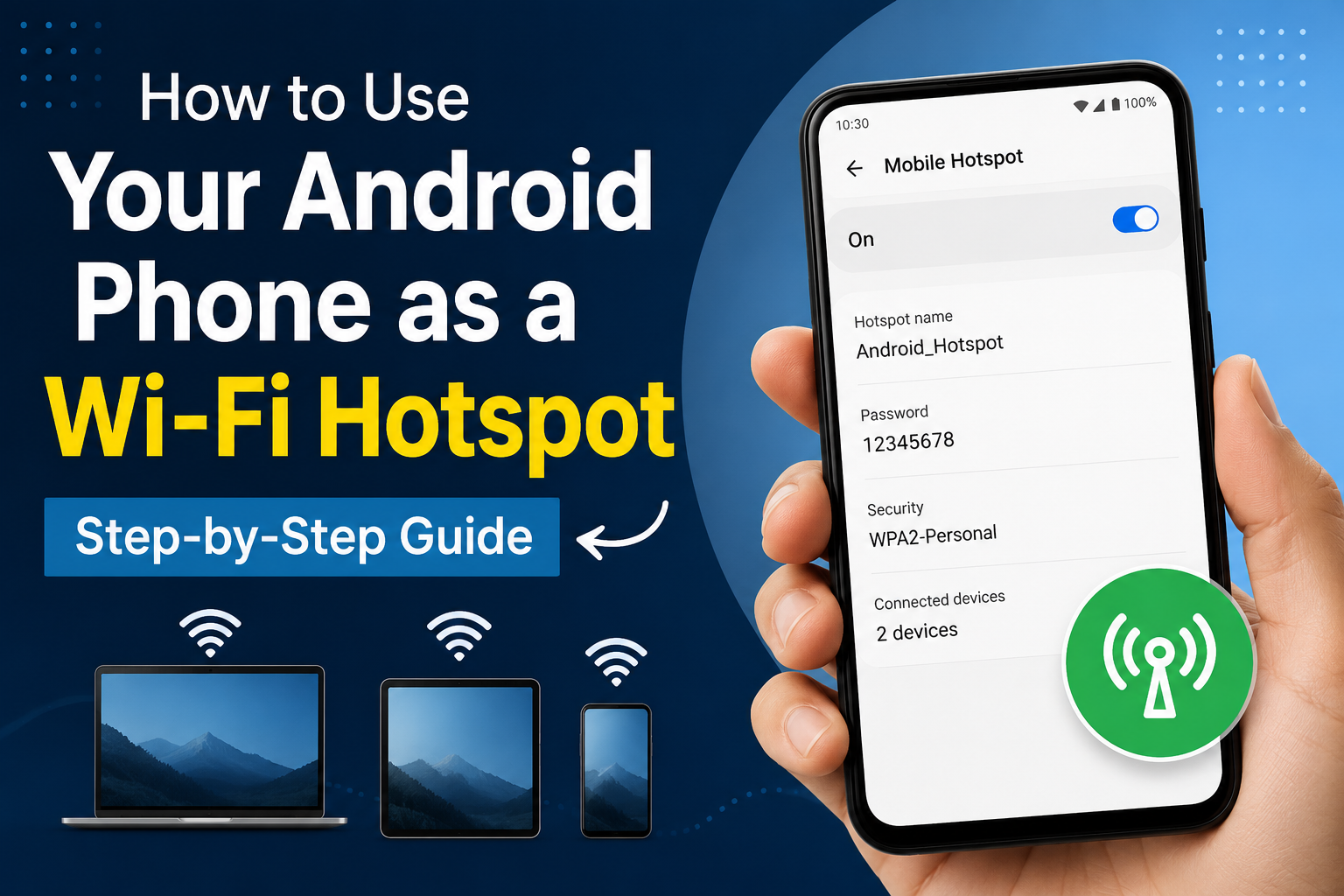
How to Use Your Android Phone as a Wi-Fi Hotspot (2026 Guide)
You are working on your laptop when the home Wi-Fi suddenly stops. The router lights are blinking, restarting it changes nothing, and you still need to send a file or finish an assignment.
Then you remember that your Android phone has mobile data.
Within a minute, your phone can act like a small Wi-Fi router and provide internet access to your laptop, tablet, or another phone. You do not need to install a separate hotspot app, create an account, or connect any special equipment.
The feature is already built into most Android phones.
It is easy to switch on, but a few settings—especially the password, frequency band, data limit, and automatic shut-off—can make the difference between a reliable connection and a frustrating one.
What a Mobile Hotspot Actually Does
A mobile hotspot shares your phone’s internet connection with nearby devices.
Your phone connects to the internet through mobile data, then creates a private Wi-Fi network. Other devices can connect to that network using the hotspot name and password, much like they would connect to a home router.
Most Android phones support internet sharing through:
- Wi-Fi hotspot
- USB tethering
- Bluetooth tethering
Wi-Fi is normally the easiest choice because it works with laptops, tablets, smart TVs, and other phones without requiring a cable.
Google notes that most Android phones can share mobile data through Wi-Fi, Bluetooth, or USB. However, some mobile carriers may restrict tethering or charge separately for it, so checking your package conditions is sensible if you plan to use the feature frequently.
Before You Turn On the Hotspot
Check these four things first.
1. Make sure mobile data is working
Turn off Wi-Fi temporarily and open a website on your phone.
If the page loads, your mobile data connection is working. If it does not, switching on the hotspot will not solve the problem because there is no active internet connection to share.
2. Check your remaining mobile data
Hotspot usage can consume data much faster than ordinary phone browsing.
A connected laptop may automatically:
- Download Windows updates
- Sync Google Drive or OneDrive files
- Back up photographs
- Update applications
- Load desktop versions of websites
- Stream videos at a higher resolution
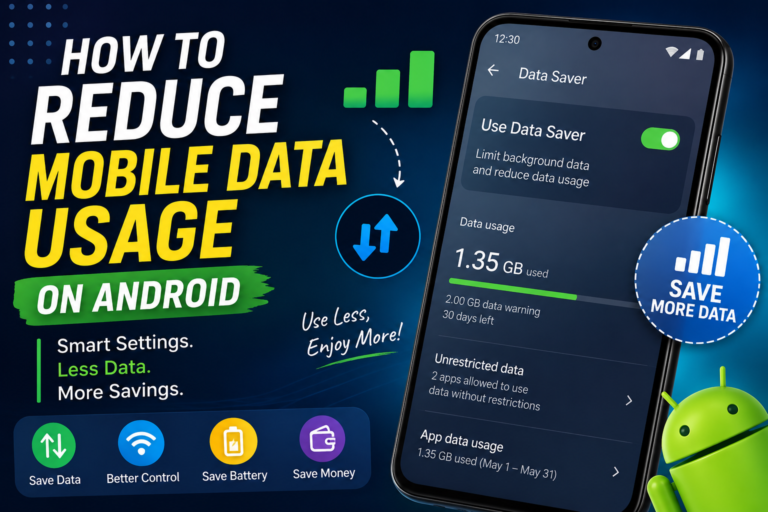
A task that feels small on a laptop can use hundreds of megabytes without being obvious. If you’re already trying to stretch your monthly data plan, hotspot use is exactly the kind of thing that can undo those efforts fast — I covered the settings that help most in my guide on saving mobile data on Android.
3. Check your battery level
Running a Wi-Fi hotspot uses more power than ordinary mobile browsing because the phone is maintaining both a mobile-data connection and a Wi-Fi network.
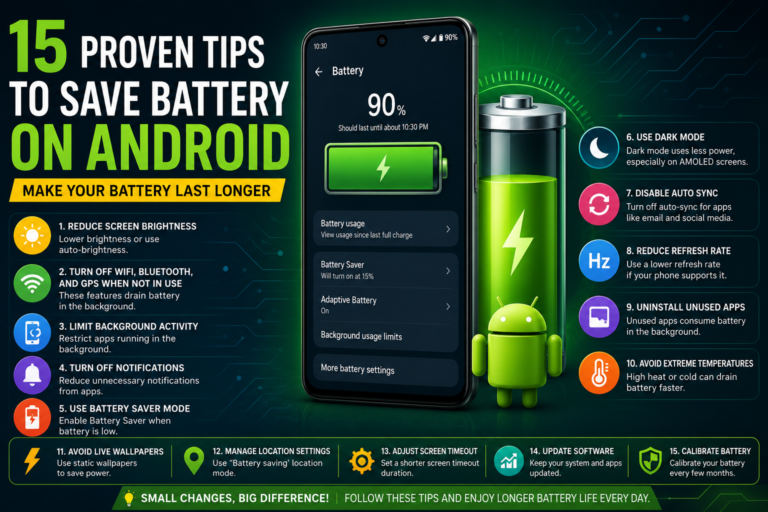
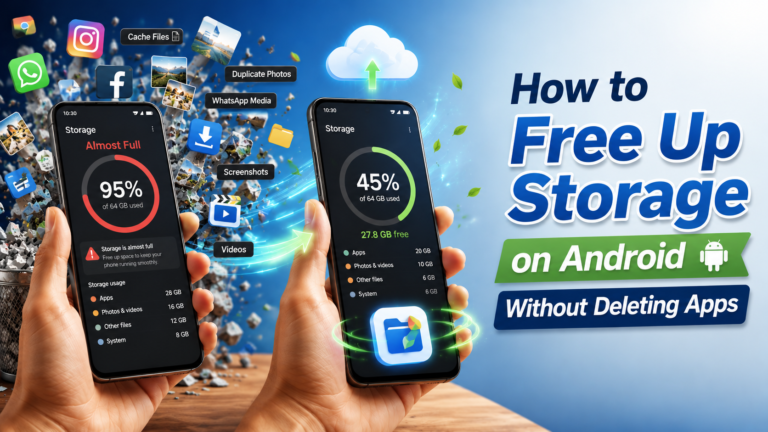
Stop using the hotspot temporarily if the phone becomes uncomfortably hot or displays a temperature warning. If battery drain is a bigger everyday concern beyond just hotspot use, I broke down 15 tested tips ranked by real impact in a separate guide.
4. Confirm that your mobile package supports tethering
Many networks include hotspot use as part of a normal data allowance, but some packages apply restrictions.
If the hotspot turns on but connected devices cannot access the internet, your carrier package is one possible cause.
How to Turn On a Wi-Fi Hotspot on Android
The exact menu names vary slightly between Google Pixel, Samsung Galaxy, Xiaomi, Redmi, Realme, Oppo, Vivo, Motorola, and other Android phones.
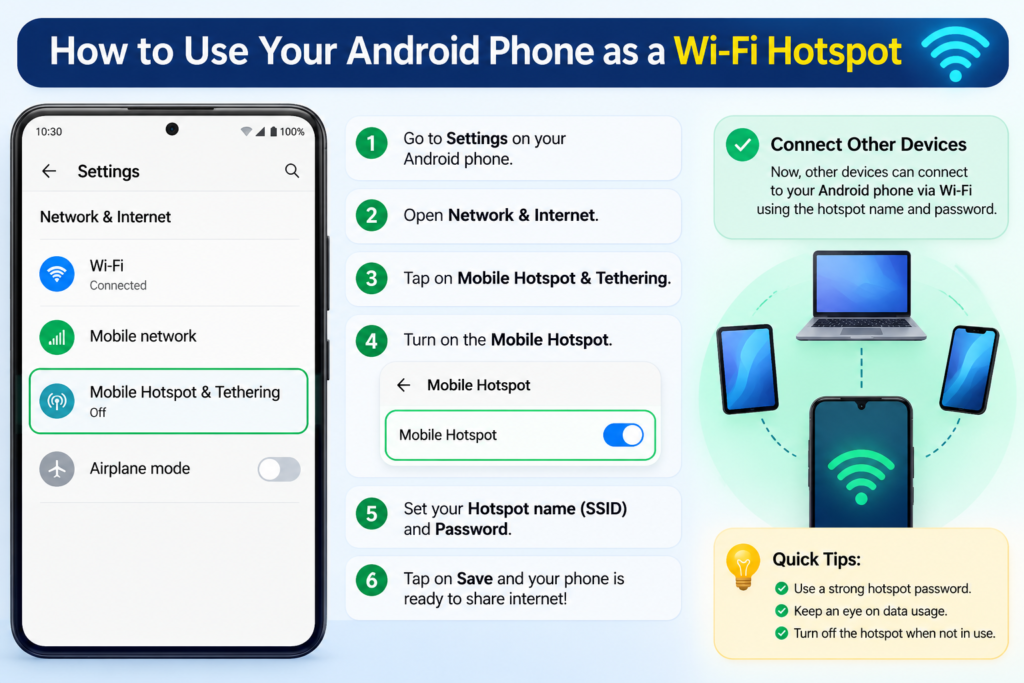
On a typical Android phone, use these steps:
- Open Settings.
- Tap Network & Internet.
- Select Hotspot & tethering.
- Tap Wi-Fi hotspot.
- Turn on Use Wi-Fi hotspot.
Google also provides a faster method:
- Swipe down from the top of the screen.
- Find the Hotspot button in Quick Settings.
- Press and hold it to open the hotspot settings.
- Turn on the Wi-Fi hotspot.
When the hotspot is active, an icon normally appears in the status bar.
How to Turn On a Hotspot on Samsung Galaxy Phones
Samsung uses slightly different menu names.
- Open Settings.
- Tap Connections.
- Select Mobile Hotspot and Tethering.
- Turn on Mobile Hotspot.
To change its settings, tap Mobile Hotspot instead of only pressing the switch.
Samsung allows users to configure the network name, password, security level, and Wi-Fi band.
How to Connect a Laptop or Another Phone
After enabling the hotspot:
- Open the Wi-Fi settings on the device you want to connect.
- Look for your phone’s hotspot name.
- Select it.
- Enter the hotspot password.
- Wait for the device to connect.
You can find the hotspot name and password inside your phone’s hotspot settings.
Some Android phones also display a QR code. Another phone or tablet can scan that code to connect without manually entering the password.
For a Windows laptop:
- Select the Wi-Fi icon on the taskbar.
- Choose your phone’s hotspot name.
- Click Connect.
- Enter the password.
- Select Next.
Consider leaving Connect automatically disabled if this is only an emergency connection. Otherwise, the laptop may reconnect to your phone later and use mobile data without you noticing.
Change the Default Hotspot Name
The default hotspot name often includes the phone model, such as:
- Galaxy A25
- Redmi Note 13
- Pixel 9
- AndroidAP
That works, but a custom name is easier to recognize.
Open the hotspot settings and look for:
- Hotspot name
- Network name
- SSID
- Configure hotspot
Choose a simple name that does not reveal unnecessary personal information.
Good examples include:
- Sareen-Mobile
- Study-Hotspot
- Backup-Internet
- Android-Network
Avoid using your full name, phone number, home address, or university registration number.
Set a Strong Hotspot Password
Never leave a hotspot open in a public place.
Anyone nearby could connect, consume your data, slow down the connection, or use your network for activities you did not authorize.
Use a password with:
- At least 12 characters
- Uppercase and lowercase letters
- Numbers
- A symbol where supported
Avoid obvious passwords such as:
- 12345678
- password
- your phone number
- your date of birth
- android123
A better example would be:
StudyNet#4821
Do not copy that exact password. Create your own.
Samsung specifically recommends protecting the hotspot with a password to prevent unknown people from connecting.
Should You Use 2.4 GHz or 5 GHz?
Many newer Android phones allow you to select a hotspot band.
Use 2.4 GHz when:
- The connected device is older.
- You need a longer range.
- The device cannot see your hotspot.
- There are walls between the phone and device.
- Connection reliability matters more than maximum speed.
Use 5 GHz when:
- Both devices support it.
- The devices are close together.
- You want potentially faster performance.
- The 2.4 GHz band is crowded.
The most common mistake is choosing 5 GHz and then wondering why an older laptop cannot find the hotspot.
If the hotspot does not appear in the device’s Wi-Fi list, switch the band to 2.4 GHz. Samsung also recommends trying 2.4 GHz when another device cannot discover a Galaxy hotspot.
How to Prevent the Hotspot From Using Too Much Data
The hotspot itself does not decide how much data is consumed. The connected devices do.
Use these precautions before connecting a laptop.
Set the connection as metered in Windows
On Windows 11:
- Open Settings.
- Select Network & internet.
- Tap Wi-Fi.
- Open the connected hotspot network.
- Turn on Metered connection.
This tells Windows that the connection has limited data. It can reduce some background downloads, although it does not block everything.
Pause cloud syncing
Temporarily pause:
- OneDrive
- Google Drive
- Dropbox
- iCloud
- Adobe Creative Cloud
A large folder synchronization can quietly consume a significant part of your mobile package.
Avoid automatic app updates
Microsoft Store, Steam, Epic Games, Adobe applications, browsers, and antivirus software may download updates in the background.
Pause them before beginning a hotspot session.
Lower video quality
Streaming video can consume data quickly.
For temporary hotspot use, choose:
- 360p for minimum data usage
- 480p for acceptable phone viewing
- 720p only when necessary
Avoid leaving video quality on Auto, because a fast mobile connection may trigger HD or 4K playback.
Monitor data usage on the phone
Many Android phones show hotspot data consumption under:
Settings → Network & Internet → Data usage
The location varies by manufacturer. Some phones also allow you to set a daily data warning or hotspot limit.
Why the Hotspot Turns Off by Itself
Many phones automatically disable the hotspot when no device is connected for several minutes. This prevents unnecessary battery drain.
That behavior can be useful, but it may become annoying if your laptop repeatedly disconnects.
Open the hotspot settings and look for an option such as:
- Turn off hotspot automatically
- Timeout settings
- Turn off when no device is connected
- Keep mobile hotspot on
Samsung Galaxy phones include an option to choose how long the hotspot remains active without a connected device.
Do not disable automatic shut-off unless you genuinely need the hotspot to remain available. It is easy to forget it is running.
What to Do When the Hotspot Is Not Showing
If another device cannot find your Android hotspot, try these fixes in order.
Switch to 2.4 GHz
This is the most useful fix for older laptops and tablets.
Turn off hidden network mode
Some phones allow the hotspot name to be hidden. Disable that option so other devices can discover it normally.
Restart the hotspot
Turn the hotspot off, wait ten seconds, and switch it back on.
Toggle airplane mode
Enable airplane mode for around ten seconds, turn it off, and wait for mobile data to reconnect.
Then enable the hotspot again.
Restart both devices
Restart the Android phone and the device attempting to connect.
Change the hotspot name
Unusual characters, emojis, and very long network names can cause problems on older devices.
Use a simple name containing letters and numbers.
Reset network settings as a last step
Network reset can fix damaged Wi-Fi, Bluetooth, or mobile-network configurations, but it also removes saved Wi-Fi networks and Bluetooth pairings.
Use it only after trying the simpler fixes.
What to Do When a Device Connects but Has No Internet
A device may connect successfully to the hotspot while still showing “No internet.”
Check the following.
Test mobile data on the phone
Turn off the hotspot and load a webpage directly on the phone.
If the phone itself has no internet, the hotspot cannot provide it.
Disable the phone’s Wi-Fi
Some phones can share an existing Wi-Fi connection, while others are designed mainly to share mobile data.
For troubleshooting, turn off Wi-Fi and confirm that mobile data is active.
Check the mobile signal
A weak 4G or 5G signal can make the hotspot appear connected while pages fail to load.
Move closer to a window or another location with stronger reception.
Disconnect extra devices
Too many connected devices can reduce performance. Remove devices that are not currently needed.
Check VPN and Private DNS settings
A VPN or custom Private DNS configuration may occasionally interfere with tethering.
Temporarily disable the VPN and test the connection again. Do not leave privacy tools disabled permanently without understanding why the problem occurred.
Check your carrier package
Your network may restrict hotspot use even when ordinary mobile data works on the phone.
Contact the carrier if the feature consistently fails despite correct settings.
Wi-Fi Hotspot vs USB Tethering
Wi-Fi is convenient, but USB tethering can be better for a laptop.
Wi-Fi hotspot advantages
- No cable required
- Multiple devices can connect
- Quick to enable
- Works with phones, tablets, laptops, and TVs
Wi-Fi hotspot disadvantages
- Uses more battery
- Can make the phone warm
- Nearby people can see the network name
- Speed may fall with multiple connected devices
USB tethering advantages
- More stable for one laptop
- Charges the phone while connected
- Less visible than a Wi-Fi network
- Often produces a consistent connection
USB tethering disadvantages
- Requires a data-capable cable
- Usually connects only one device
- USB drivers may cause problems
- Some charging-only cables will not work
To use USB tethering:
- Connect the phone to a computer with a USB cable.
- Open Settings.
- Go to Hotspot & tethering.
- Turn on USB tethering.
If the option is greyed out, unlock the phone, reconnect the cable, and make sure the cable supports data transfer.
Is It Safe to Use Your Phone as a Hotspot?
Yes, when properly configured.
Use these basic precautions:
- Set a strong password.
- Use WPA2 or WPA3 security where available.
- Do not leave the network open.
- Check the connected-device list.
- Remove unfamiliar devices immediately.
- Change the password after sharing it with someone temporarily.
- Turn off the hotspot when finished.
- Avoid exposing personal information in the hotspot name.
A hotspot is safer than joining an unknown public Wi-Fi network in many everyday situations, but it still needs proper security settings.
Does a Hotspot Damage the Phone Battery?
Occasional hotspot use does not normally damage a healthy phone.
However, long sessions can create additional heat and increase battery consumption. Heat is the bigger concern, particularly when the phone is charging, sharing data, and sitting in direct sunlight at the same time.
For safer long sessions:
- Remove a thick case if the phone becomes unusually warm.
- Keep it out of direct sunlight.
- Place it on a hard surface.
- Disconnect unused devices.
- Avoid gaming or recording video on the phone at the same time.
- Use a reliable charger and cable.
Stop using the hotspot temporarily if the phone becomes uncomfortably hot or displays a temperature warning.
A Practical Hotspot Setup That Works Well
For most people, these settings provide a good balance:
- Network name: A simple custom name
- Security: WPA2 or WPA3
- Password: At least 12 characters
- Band: 2.4 GHz for compatibility
- Automatic shut-off: After 5–10 minutes without a device
- Connected devices: One or two when possible
- Windows connection: Set as metered
Switch to 5 GHz only when you need more speed and know the receiving device supports it.
Final Thoughts
Turning an Android phone into a Wi-Fi hotspot is simple. The part people usually overlook is controlling what happens after the laptop connects.
A secure password prevents strangers from using your data. Choosing 2.4 GHz solves many compatibility problems. Marking the connection as metered helps reduce unexpected laptop downloads. Watching the phone’s temperature keeps longer sessions safer.
For a brief outage, university assignment, road trip, or emergency connection, the built-in Android hotspot is often all you need. Just remember to switch it off when the job is finished—otherwise your battery and mobile-data balance may disappear faster than expected.