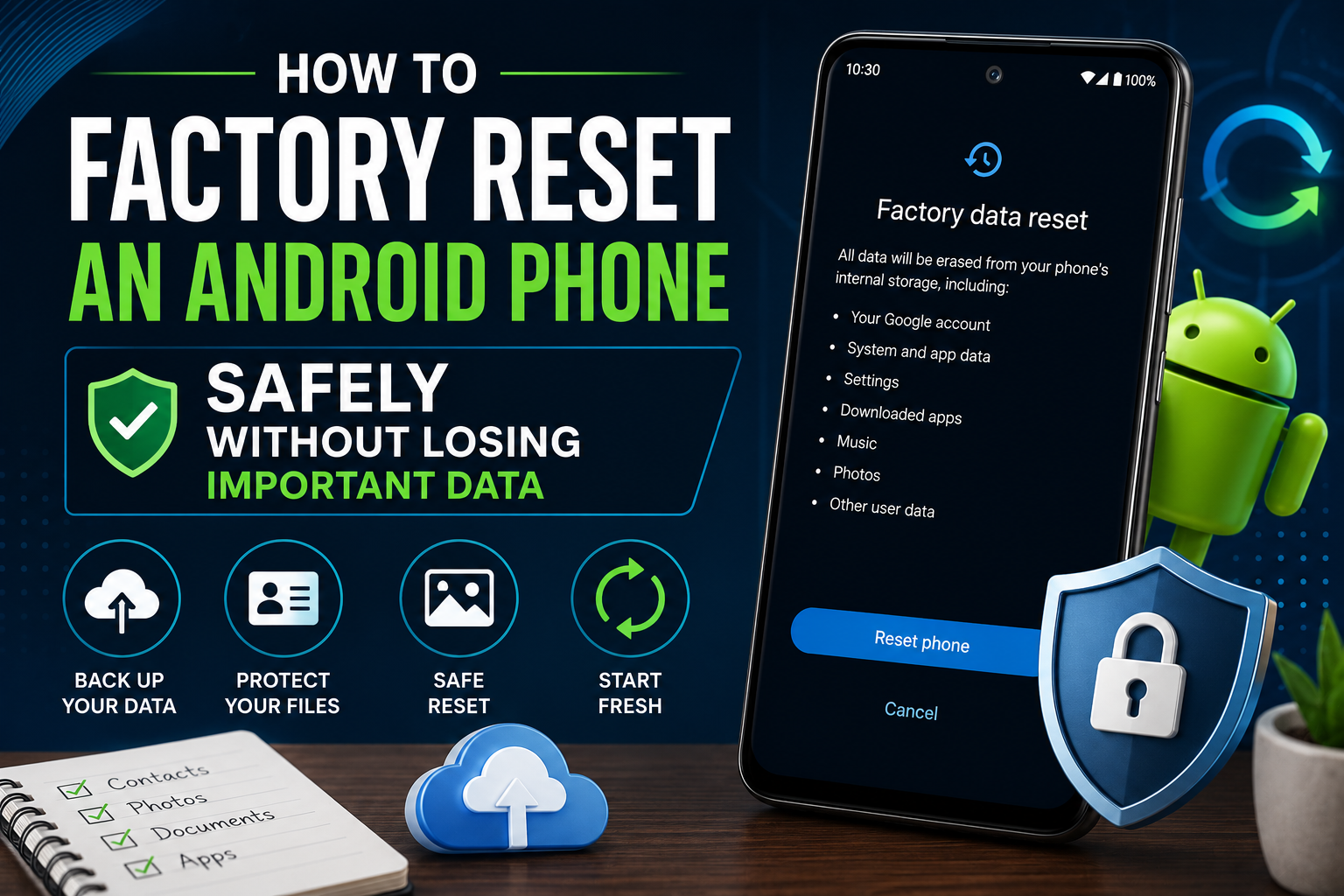
How to Factory Reset an Android Phone Without Losing Your Data
A factory reset usually becomes tempting when an Android phone starts behaving badly.
Apps keep crashing, storage remains full even after deleting files, the battery drains unusually fast, or the phone has become so slow that opening the camera feels like a test of patience. At that point, the “Factory data reset” button can look like a quick solution.
The dangerous part is that many people press it before checking what is actually backed up.
They assume that signing into the same Google account will magically restore every photo, WhatsApp chat, downloaded document, authenticator code, and app setting. Sometimes most of the data returns. Sometimes it does not.
A factory reset can be useful, but it should be treated as the final step—not the first troubleshooting method you try.
This guide explains what a factory reset removes, what it does not fix, how to prepare your phone properly, and how to reset it without creating a second problem.
What a Factory Reset Actually Does
A factory reset erases personal data stored on the phone and returns the software settings to their default state.
It normally removes:
- Installed apps
- App accounts and local app data
- Photos and videos stored in internal storage
- Downloads
- Saved Wi-Fi networks
- Bluetooth pairings
- Call history
- Text messages, depending on backup support
- Home-screen layout
- Device settings
- Screen lock
- Google and manufacturer accounts from the device
Google clearly warns that a factory reset removes all data from the phone. You may be able to restore backed-up data afterward, but only if it was successfully backed up before the reset.
If your phone is only running out of storage, try our guide on How to Free Up Storage on Android Without Deleting Apps before performing a factory reset.
For example, if the phone originally came with Android 13 and was later updated to Android 15, a normal factory reset will generally keep the currently installed Android version. It removes your data and settings rather than rolling the operating system back to the version installed at the factory.
When a Factory Reset Makes Sense
A reset may be worth considering when:
- The phone remains extremely slow after normal cleanup.
- Apps crash even after updates and cache clearing.
- System settings appear corrupted.
- The device has persistent software errors.
- You are selling, giving away, or trading in the phone.
- You installed problematic software and cannot fully remove it.
- You want to start fresh after years of accumulated apps and settings.
- A support technician recommends it after other fixes fail.
A reset is not the best first response to every problem.
Before erasing the phone, try:
- Restarting it
- Updating Android
- Updating apps
- Clearing the affected app’s cache
- Removing recently installed apps
- Freeing storage
- Testing Safe Mode
- Resetting only Wi-Fi, Bluetooth, or network settings
- Checking for a faulty SD card
- Scanning for suspicious apps
Samsung, for example, provides separate options for resetting mobile-network settings, Wi-Fi and Bluetooth settings, accessibility settings, and all settings without immediately deleting every file.
That matters because a full factory reset is sometimes unnecessary. If only Bluetooth is failing, deleting your photographs, apps, and accounts will not be a sensible first fix.
The Biggest Mistake: Assuming Everything Is Backed Up
The most common reset mistake is checking that Google Backup is enabled and then assuming the job is finished.
Google Backup can include certain device settings and app data, but not every app supports complete backup and restoration. Google specifically notes that not all apps can back up or restore all settings and data.
You should check each important type of data separately.
A good backup plan includes:
- Google device backup
- Google Photos or another photo backup
- WhatsApp backup
- Contacts sync
- Authenticator-account recovery
- Files copied to a computer or cloud drive
- Notes exported or synchronized
- Password-manager access
- Banking-app login information
- Important app-specific backups
Think of backup as a checklist, not a single button.
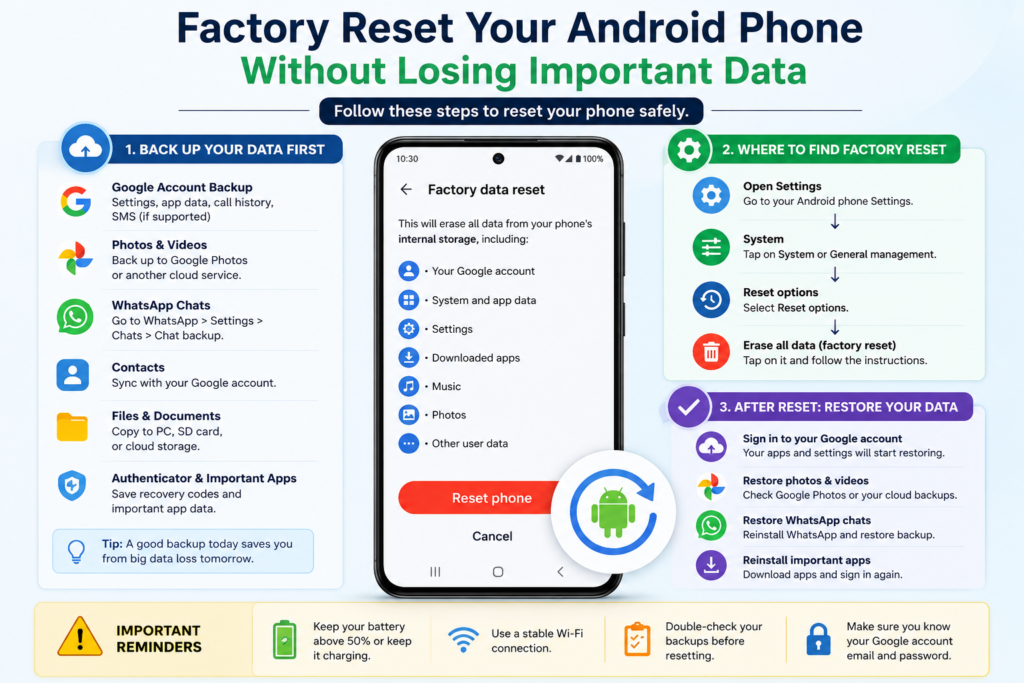
Step 1: Check Your Google Account Details
Before resetting, confirm that you know the Google account currently connected to the phone.
Go to:
Settings → Google
or:
Settings → Passwords and accounts
Write down the full Gmail address.
Then confirm that you know the password by signing into that Google account in a browser or on another device.
Do not rely on a password that is only saved inside the phone you are about to erase.
After a reset, Android may ask for the Google account that was previously used on the phone. This is part of device-protection security. Google advises users to know the relevant Google Account username and password before resetting.
If you recently changed the Google password, it may be sensible to wait before resetting, especially if the phone is being prepared for sale. Security systems sometimes apply temporary verification delays after account changes.
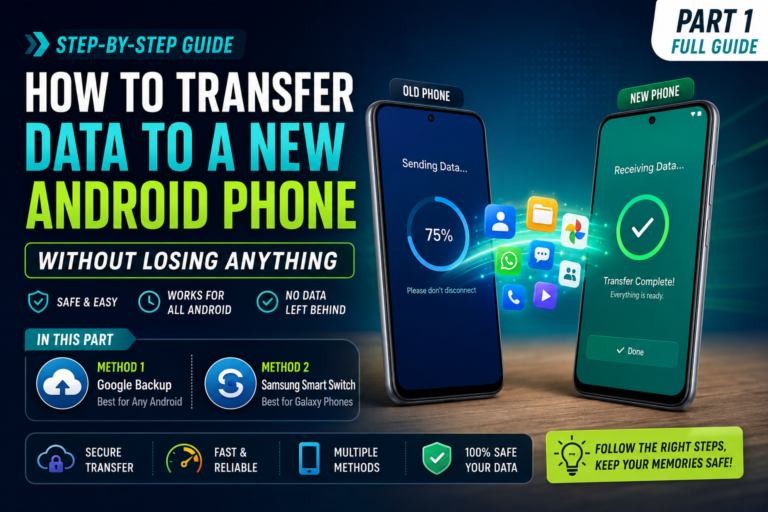
Step 2: Create a Fresh Google Backup
On many Android phones, you can manually start a backup through:
Settings → Google → All services → Backup → Back up now
Google’s current backup guidance uses this route on supported Android devices.
Before pressing Back up now, check:
- The correct Google account is selected.
- The phone is connected to Wi-Fi.
- The battery is sufficiently charged.
- Google Drive or Google One storage is not full.
- The most recent backup date updates after completion.
Do not begin the reset while the backup is still running.
Depending on the phone, the backup may include:
- Apps and some app data
- Call history
- Contacts
- Device settings
- SMS and MMS messages
- Wi-Fi settings
The exact content varies by Android version, manufacturer, and app support.
Step 3: Verify Your Photos and Videos
Photos are often the most emotionally important files on a phone, and they deserve a separate check.
Open Google Photos and tap your profile picture.
Look for a message such as:
- Backup complete
- Backing up
- Backup is off
- Waiting for Wi-Fi
- Account storage full
Do not assume that seeing a photograph inside Google Photos means it is stored online. Google Photos can display local images that have not yet been backed up.
A practical way to verify the backup is to open Google Photos in a browser on a computer or another phone and confirm that your recent photographs appear there.
Also check folders other than the main camera folder, including:
- Screenshots
- WhatsApp Images
- WhatsApp Video
- Downloads
- Telegram
- Edited images
- Screen recordings
- Bluetooth files
Some folders may not be included in automatic photo backup unless you enable them manually.
For extra protection, copy important photos and videos to a laptop, external drive, or another cloud service before resetting.
Step 4: Back Up WhatsApp Properly
WhatsApp chats should be checked separately because Android’s general device backup is not a replacement for WhatsApp’s own backup process.
Open WhatsApp and go to:
Settings → Chats → Chat backup
Check:
- The selected Google account
- The last backup time
- Whether videos are included
- Whether encrypted backup is enabled
- Whether enough Google storage is available
Tap Back up and wait for it to finish.
If end-to-end encrypted backup is enabled, make sure you know the password or have the recovery key. Losing that information can make the backup unusable.
Also remember that locally stored WhatsApp media may not all be available online unless it is included in the WhatsApp backup or copied separately.
Step 5: Confirm Your Contacts Are Synced
Open the Contacts app and check where your contacts are stored.
Contacts may be saved to:
- Your Google account
- The phone only
- The SIM card
- A Samsung account
- Another email account
Phone-only contacts can disappear after a factory reset.
To check Google contacts, open Google Contacts in a browser and confirm that recent numbers appear there.
For additional safety, export contacts as a .vcf file and store that file on a computer or cloud drive.
A contact backup takes only a few minutes and can prevent the unpleasant experience of restoring the phone and discovering that half your numbers were never synchronized.
Step 6: Protect Two-Factor Authentication Access
Authenticator apps are easy to forget because they usually work quietly in the background.
Before resetting, check apps such as:
- Google Authenticator
- Microsoft Authenticator
- Authy
- Aegis
- Duo Mobile
- Banking authenticators
- University login apps
Depending on the app, you may need to:
- Enable cloud sync
- Export accounts
- Transfer accounts to another device
- Save recovery codes
- Confirm a backup phone number
- Add a second authentication method
Do not reset until you know how you will sign back into accounts protected by two-factor authentication.
Losing an authenticator does not always mean losing the account permanently, but recovering access can be slow and difficult.
Step 7: Save Important Files Manually
Open the Files app and check these folders:
- Downloads
- Documents
- DCIM
- Pictures
- Movies
- Music
- Recordings
- Bluetooth
- Telegram
Look for:
- University assignments
- PDF documents
- Scanned IDs
- Voice notes
- Recorded lectures
- CV files
- Downloaded certificates
- Screenshots containing important information
- Edited videos
- Offline maps
- Saved forms
Copy important files to:
- A laptop
- Google Drive
- OneDrive
- Dropbox
- An external USB drive
- An SD card, where supported
Do not move the only copy to an SD card and assume it is safe forever. Cards can fail or be accidentally formatted. Important files should ideally exist in at least two locations.
Step 8: Check Notes, Passwords, and Browser Data
Not all notes apps synchronize automatically.
Open the notes app and confirm whether notes are connected to an account.
Examples include:
- Google Keep
- Samsung Notes
- Microsoft OneNote
- Notion
- Simplenote
- ColorNote
- Manufacturer-specific note apps
For Samsung Notes, confirm Samsung Cloud or the relevant sync option is enabled.
For password managers, make sure you know the master password.
Check:
- Google Password Manager
- Bitwarden
- 1Password
- Dashlane
- LastPass
- Samsung Pass
If you store passwords only inside a browser, verify that browser sync is enabled.
Also save any open browser tabs or bookmarks you genuinely need. Those are easy to forget until the phone has already been erased.
Step 9: Prepare Banking and Payment Apps
Banking apps may require extra verification after a reset.
Before proceeding:
- Make sure your registered SIM is active.
- Confirm that you remember login credentials.
- Check whether the app requires a debit-card number.
- Keep your CNIC or identity details available where legally required.
- Confirm access to the registered email address.
- Note any customer-support numbers.
- Remove payment cards from digital wallets if selling the phone.
Do not write banking passwords in an unsecured note or screenshot.
Some banking apps may treat a reset phone as a new device and require registration again. That is normal security behavior.
Step 10: Charge the Phone and Remove the SD Card
Charge the battery to at least 50 percent before beginning.
A reset should not be interrupted by the phone shutting down.
If the device has a removable microSD card, consider taking it out before resetting. This reduces the risk of accidentally formatting it.
However, removing the card does not replace backing it up.
Also remove the SIM card if the phone is being sold or given away. You do not normally need to remove the SIM for a reset you are performing for your own continued use.
How to Factory Reset a Standard Android Phone
Menu names vary between brands, but a common route is:
- Open Settings.
- Tap System.
- Select Reset options.
- Tap Erase all data (factory reset).
- Review the information.
- Enter your PIN, password, or pattern.
- Confirm Erase all data.
Google recommends using the Settings app for a normal factory reset where possible. It also emphasizes that users should back up first and know their account credentials.
The phone will restart and begin erasing the data.
This may take several minutes.
Do not repeatedly press buttons or force the phone to restart while the reset is in progress.
How to Factory Reset a Samsung Galaxy Phone
On a Samsung Galaxy device:
- Open Settings.
- Tap General management.
- Tap Reset.
- Choose Factory data reset.
- Review the listed accounts and data.
- Scroll down and tap Reset.
- Enter the phone’s security code if requested.
- Tap Delete all.
These are the current steps provided in Samsung’s official support guidance.
Samsung may also ask for the Samsung account password before completing the reset.
What If the Phone Will Not Open Settings?
If the phone is frozen, stuck on the logo, or unable to boot normally, it may be possible to reset it through Recovery Mode.
The exact button combination differs by manufacturer and model.
Common combinations include:
- Power + Volume Up
- Power + Volume Down
- Power + Volume Up while connected to a USB cable
Because the procedure varies, check the official support instructions for your exact phone model before using Recovery Mode.
Inside Recovery Mode, options often include:
- Reboot system now
- Wipe cache partition
- Wipe data/factory reset
Use the volume buttons to navigate and the power button to confirm on many devices.
Be careful. Selecting Wipe data/factory reset is destructive.
If the phone still belongs to you and you can access Settings, resetting from Settings is generally simpler and safer.
Factory Reset Protection Explained Simply
Android includes a security feature commonly known as Factory Reset Protection.
Its purpose is to make a stolen phone harder to reuse.
After certain types of reset, especially a reset performed outside the normal Settings process, the phone may request the Google account previously linked to the device.
That is why account credentials matter.
If you are selling or giving away the phone, remove your Google and manufacturer accounts before performing the reset:
- Open Settings.
- Go to Accounts, Passwords and accounts, or Manage accounts.
- Select each Google account.
- Tap Remove account.
- Remove the Samsung, Xiaomi, Oppo, or other manufacturer account where applicable.
- Then perform the factory reset from Settings.
This helps the next owner set up the phone without being blocked by your account verification.
Never attempt to bypass Factory Reset Protection on a device you do not legally own.
What to Do After the Reset
When the reset finishes, the phone should display the initial setup screen.
If you are keeping the phone:
- Connect to Wi-Fi.
- Sign into your Google account.
- Choose the most recent backup.
- Restore apps and supported data.
- Sign into the manufacturer account if needed.
- Reconfigure screen security.
- Restore WhatsApp.
- Check contacts.
- Reinstall banking and authenticator apps carefully.
- Allow photos and files time to synchronize.
Do not worry if every app does not appear immediately. Restoration can continue in the background.
Keep the phone connected to Wi-Fi and power during the process.
If you are selling the phone, stop at the welcome screen after confirming the reset completed. Do not sign back into your account.
What a Factory Reset Will Not Fix
A reset cannot repair every phone problem.
It is unlikely to fix:
- A physically damaged battery
- A broken charging port
- Water damage
- A cracked display
- Faulty storage hardware
- A damaged camera
- Weak mobile coverage
- A failing SD card
- Severe overheating caused by hardware
- Manufacturer defects
- Limited performance caused by old hardware
If the phone remains slow or unstable immediately after a clean reset—before many apps are installed—the problem may be hardware-related.
A reset also will not permanently solve storage problems if you reinstall every unnecessary app and restore the same large files immediately.
Mistakes to Avoid
Resetting without checking the latest backup date
A backup from six months ago is not enough.
Forgetting the Google password
You may be unable to complete setup afterward.
Assuming WhatsApp is included automatically
Check WhatsApp’s own backup screen.
Ignoring authenticator apps
This can lock you out of important accounts.
Resetting to fix one small setting
Try network reset, app reset, or Safe Mode first.
Selling the phone without removing accounts
The buyer may encounter account-verification lock.
Interrupting the reset
Keep the battery charged and let the process finish.
Restoring every app immediately
If you reset because of crashes or suspicious behavior, reinstall apps gradually. This makes it easier to identify the problematic app.
A Simple Pre-Reset Checklist
Before pressing Erase all data, confirm each item:
- Google account email and password are known.
- Google Backup completed recently.
- Photos and videos are visible online or copied elsewhere.
- WhatsApp backup is complete.
- Contacts are synchronized or exported.
- Authenticator accounts are transferred or backed up.
- Important downloads and documents are copied.
- Notes are synchronized.
- Password-manager access is confirmed.
- Banking login and registered SIM are available.
- Battery is above 50 percent.
- SD card is removed if necessary.
- Google and manufacturer accounts are removed if selling the phone.
If even one important item is uncertain, pause the reset and verify it first.
Final Thoughts
A factory reset is not difficult. Preparing for it is the part that deserves attention.
The safest approach is to assume that anything stored only on the phone will disappear permanently. Verify each backup, open important files from another device, confirm account passwords, and check app-specific data instead of trusting one general backup switch.
Once everything important exists somewhere else, the reset itself is straightforward.
Used carefully, it can give a cluttered or unstable Android phone a clean start. Used too quickly, it can replace a software problem with missing photos, lost chats, and inaccessible accounts.