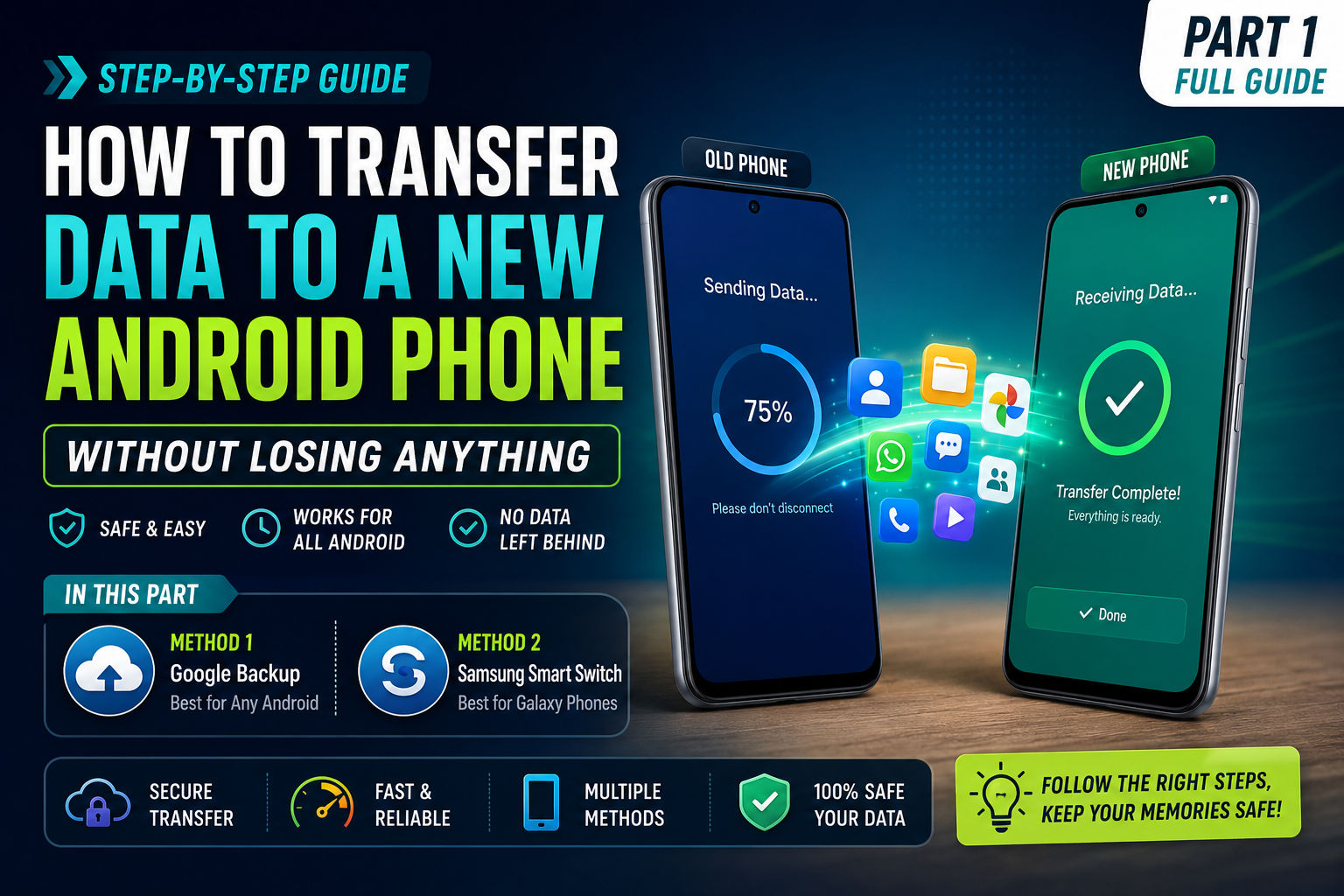
How to Transfer Data From Old Phone to New Android Phone(part 1)
Last year, I helped my dad switch to a new phone and made the classic beginner mistake—I factory reset his old phone before making sure everything had actually transferred.
A few minutes later we realized something was wrong.
His last three years of WhatsApp chats with my grandmother, who has since passed away, never backed up properly. I spent two full days trying different recovery methods and managed to recover only about half of them.
That experience completely changed how I move data between phones.
Now, before I erase any device, I follow the exact checklist you’re about to read—and I haven’t lost a single photo, message, or contact since.
If you’re upgrading to a new Android phone, don’t rush the setup. Spend a few extra minutes doing it properly, and you’ll save yourself hours (or days) of frustration later.
Quick Answer
If you’re moving to a new Android phone and don’t want to lose your data, follow these steps in order:
✅ Back up your old phone using Google Backup
✅ Create a separate WhatsApp backup
✅ Use your phone manufacturer’s transfer tool (Samsung Smart Switch, Mi Mover, etc.) whenever possible
✅ Verify that everything transferred successfully
✅ Only then factory reset your old phone.
Estimated Time: 20–60 minutes
Difficulty: ★☆☆☆☆ (Easy)
Before You Start
Before touching either phone, make sure you have these ready.
Checklist
✔ Your old phone
✔ Your new phone
✔ Both phones charged above 50%
✔ Stable Wi-Fi connection
✔ Your Google account password
✔ Charging cable (recommended)
✔ USB-C cable (optional but much faster)
Pro Tip: Don’t remove your SIM card or erase your old phone until
you’ve confirmed everything is working on the new one.If your old phone has been running low on storage, that’s actually a
good moment to clean things up before transferring — I covered exactly
where that space usually goes in my Android storage guide.
What Actually Transfers (And What Doesn’t)
One of the biggest mistakes people make is assuming everything transfers automatically.
Unfortunately, that’s not how Android works.
Some things move over instantly.
Others require extra steps.
And a few won’t transfer at all unless you manually back them up first.
Transfers Automatically ✅
These usually restore as soon as you sign in with your Google account.
- Contacts
- Calendar events
- Gmail
- Google Photos (if Backup is enabled)
- Chrome bookmarks
- Saved passwords
- Google Notes
- Most cloud-synced app data
Transfers With the Right Method 📱
These require Google Backup or your phone manufacturer’s transfer tool.
- Installed apps
- SMS messages
- Call history
- Device settings
- Wi-Fi passwords
- Wallpapers
- Home screen layout
Needs Extra Attention ⚠️
These are the ones people most commonly lose.
- WhatsApp chats
- Downloads folder
- PDFs
- Screenshots
- Authenticator apps
- Banking apps
- Payment apps
May Not Transfer At All ❌
Depending on the app, these might need to be set up again.
- Saved game progress
- Some utility apps
- Carrier apps
- Offline app data
Quick Tip: If something is important, never assume it transferred. Always check it yourself.
Which Transfer Method Should You Use?
Not every method is suitable for every phone.
Here’s a quick comparison.
| Method | Best For | Difficulty |
|---|---|---|
| ⭐ Google Backup | Any Android phone | Easy |
| ⭐ Samsung Smart Switch | Samsung Galaxy | Easy |
| ⭐ Xiaomi Mi Mover | Xiaomi / Redmi / POCO | Easy |
| ⭐ Files by Google | Photos & Documents | Very Easy |
If you’re unsure, start with Google Backup. It works with virtually every Android phone.
Method 1: Google Backup (Best for Most Android Phones)
Difficulty: ★☆☆☆☆
Time Required: 20–40 minutes
Works With: Any Android device
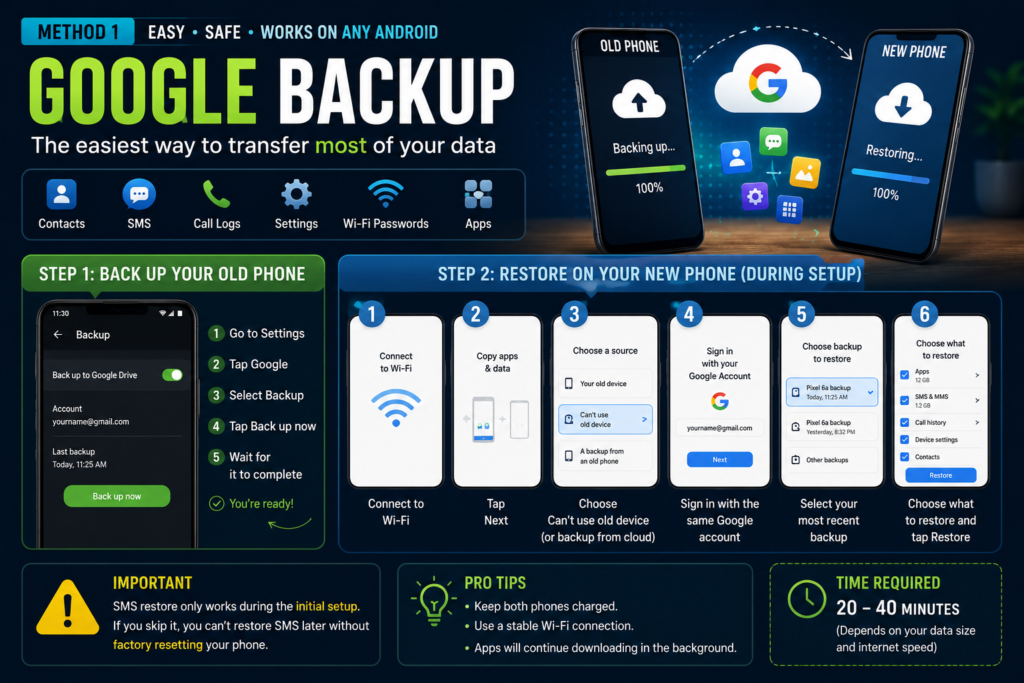
If both your old and new phones are Android devices, Google Backup is the easiest way to move your data.
I’ve used it several times between Pixel, OnePlus, Motorola, and Samsung phones, and it usually handles most of the work automatically.
Why Use Google Backup?
Choose this method if:
✅ You’re switching between different Android brands
✅ Your old phone still works
✅ You already use a Google account
Skip it if:
❌ You don’t have internet access
❌ Your phone won’t turn on
Step 1: Create a Fresh Backup
On your old phone:
- Open Settings
- Tap Google
- Tap Backup
- Press Back Up Now
- Wait until it finishes
This might take anywhere from 5 minutes to half an hour, depending on how much data you have.
Don’t rush this part.
Step 2: Restore the Backup
Now turn on your new phone.
During setup:
- Connect to Wi-Fi.
- Tap Copy Apps & Data.
- Sign in using the same Google account.
- Select your latest backup.
- Choose what you want to restore.
- Tap Restore.
Your apps will continue downloading in the background after setup, so don’t worry if they don’t all appear immediately.
Why This Works
Google stores your important information securely in your Google account.
When you sign into the same account on your new phone, Android automatically restores:
- Contacts
- Apps
- SMS
- Call history
- Settings
- Wi-Fi passwords
- Wallpapers
It’s essentially rebuilding your old phone on the new one.
Common Mistakes to Avoid
❌ Using a different Google account
❌ Turning off Wi-Fi during restore
❌ Skipping the restore screen
❌ Resetting the old phone immediately afterward
One important thing many people don’t know:
SMS messages can only be restored during the initial setup.
Once everything is transferred, it’s also worth setting up your new phone the right way from day one, so it doesn’t slow down the same way your old one eventually did — I broke that down in a separate guide.
Method 2: Samsung Smart Switch (Best for Galaxy Phones)
Difficulty: ★☆☆☆☆
Time Required: 15–45 minutes
Works With: Samsung Galaxy phones
If your new phone is a Samsung Galaxy, don’t rely only on Google Backup.
Samsung’s Smart Switch transfers even more information, including some app settings and data that Google often misses.
I’ve used Smart Switch several times, and it’s honestly one of the smoothest phone migration tools available.
Why Choose Smart Switch?
Perfect if you’re:
✅ Moving from another Samsung phone
✅ Switching from another Android brand
✅ Even moving from an iPhone
It supports:
- Contacts
- Messages
- Photos
- Videos
- Apps
- Device settings
- Home screen layout
- Some app data
How to Use Smart Switch
On Your New Samsung Phone
- Turn on the phone.
- During setup, tap Bring Your Data.
- Select the type of phone you’re moving from.
On Your Old Phone
- Install Samsung Smart Switch if it isn’t already installed.
- Open the app.
- Choose Send Data.
- Connect wirelessly or with a USB cable.
- Select everything you want to move.
- Start the transfer.
Using a cable is noticeably faster than wireless, especially if you’re transferring hundreds of photos or videos.
Why This Works
Unlike Google Backup, Smart Switch transfers data directly between the two phones.
That means:
- Faster transfers
- More complete app settings
- Better success rate
- Less dependence on cloud backups
If you’re buying a Samsung phone, this is the method I’d recommend every time.
Don’t Do This Yet…
At this point, your new phone may already look complete.
But don’t factory reset your old phone yet.
You still need to transfer:
- WhatsApp chats
- Photos (if not backed up)
- Authenticator apps
- Banking apps
- Downloads
- PDFs
- Other important files
These require a few extra steps, and we’ll cover them next.
Coming Up in Part 2
In the next part, I’ll show you:
- ✅ How to use Xiaomi Mi Mover
- ✅ Transfer files with Files by Google
- ✅ Move WhatsApp chats without losing messages
- ✅ Transfer photos in original quality
- ✅ Avoid the most common mistakes people make during phone migration