How to Fix WiFi Connection Problems on Android (8 solutions)
My phone refused to connect to my home WiFi at 11 PM, the night before an important deadline.
Every other device in the house was online—my laptop, my brother’s phone, even the smart TV—but my phone stubbornly displayed “Authentication Problem.”
I spent almost 45 minutes changing random settings before discovering that the actual solution took less than 20 seconds.
If your Android won’t connect to WiFi, don’t panic.
Start with the first fix below and work your way down. In most cases, you’ll be back online within a few minutes.
Before You Start (30-Second Check)
Before changing any settings, answer these questions:
✅ Can other devices connect to the same WiFi?
- Yes → The problem is probably your phone.
- No → The problem is likely your router or internet connection.
✅ Does your phone connect to other WiFi networks?
- Yes → Your home router is probably causing the issue.
- No → Your phone’s WiFi settings may be corrupted.
This simple check can save you a lot of time.
Why Your Android Isn’t Connecting to WiFi
Most WiFi problems happen because of one of these reasons:
| Possible Cause | How Common? |
|---|---|
| Incorrect saved password | ⭐⭐⭐⭐⭐ |
| Corrupted WiFi settings | ⭐⭐⭐⭐⭐ |
| Router needs restarting | ⭐⭐⭐⭐ |
| IP address conflict | ⭐⭐⭐ |
| MAC address filtering | ⭐⭐ |
| Android software bug | ⭐⭐ |
| Hardware failure | ⭐ |
Good news: Around 80–90% of WiFi issues are fixed by the first three solutions below.
Fix 1: Forget and Reconnect to the WiFi Network ⭐ (Most Effective)
Time Required: 20 seconds
This is the first thing I try whenever my phone refuses to connect.
Steps
- Open Settings
- Tap WiFi (or Network & Internet > Internet)
- Tap your WiFi network
- Press Forget
- Select the network again
- Enter the password carefully
- Tap Connect
Why This Works
Forgetting the network removes:
- Corrupted saved settings
- Old IP addresses
- Expired authentication data
- Outdated passwords
If someone recently changed the WiFi password, this usually fixes the problem instantly.
Quick Tip: This solves roughly half of all Android WiFi connection problems.
Fix 2: Restart Your Router and Phone
Yes…
It’s the classic IT advice.
Yes…
It actually works.
Restart the Router
- Unplug the router.
- Wait 30 seconds.
- Plug it back in.
- Wait 2–3 minutes before reconnecting.
Restart Your Phone
Simply turn it off and back on.
No factory reset.
No complicated settings.
Why This Works
Routers run continuously for weeks.
Over time they build up:
- Temporary glitches
- Memory leaks
- Too many active connections
A restart clears everything and gives the router a fresh start.
Fix 3: Double-Check the WiFi Password
It sounds obvious.
It isn’t.
I’ve seen people spend an hour troubleshooting only to discover one incorrect character.
Watch Out For
❌ O vs 0
❌ l vs 1
❌ I vs l
❌ Missing capital letters
Also Check
- Has someone recently changed the WiFi password?
- Are you connecting to the correct network?
- Is it a public WiFi that requires opening a browser to sign in?
Many cafés, hotels, and universities require you to accept their terms before internet access starts.
Fix 4: Change DHCP to a Static IP
Use this only if:
✔ Connected to WiFi
✔ But internet doesn’t work
or
✔ Connection keeps timing out
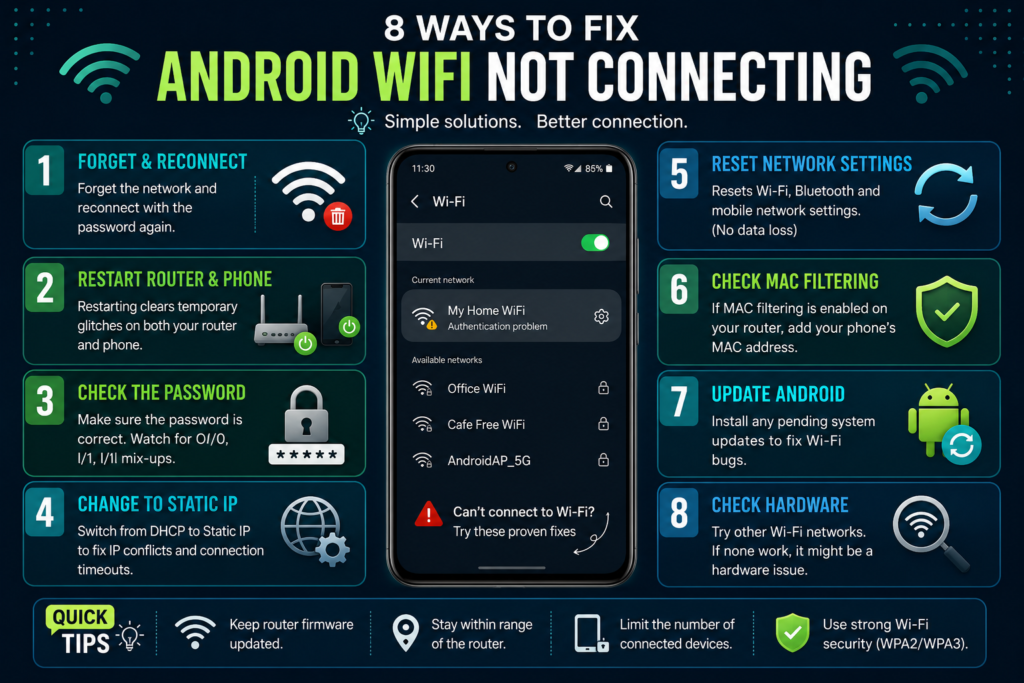
Steps
Settings → WiFi
↓
Tap your network
↓
IP Settings
↓
Change DHCP to Static
Enter:
- IP Address: 192.168.1.150 (example)
- Gateway: 192.168.1.1
- DNS 1: 8.8.8.8
- DNS 2: 8.8.4.4
Why This Works
Sometimes two devices accidentally receive the same IP address.
Giving your phone its own unique address removes the conflict.
Fix 5: Reset Network Settings
You’ll need to reconnect to WiFi afterward, but many stubborn connection issues disappear after this reset. If you use a VPN for privacy or accessing restricted content, remember you’ll need to
reconnect that too — I compared the best free options in a separate guide.
What Gets Reset?
✅ Saved WiFi networks
✅ Bluetooth pairings
✅ Mobile network settings
What Doesn’t Get Deleted?
❌ Photos
❌ Apps
❌ Contacts
❌ Messages
Steps
Settings
↓
System
↓
Reset Options
↓
Reset WiFi, Mobile & Bluetooth
You’ll need to reconnect to WiFi afterward, but many stubborn connection issues disappear after this reset.
Fix 6: Check MAC Address Filtering
This only applies if you’re using your own router.
Some routers allow only approved devices to connect.
If your phone isn’t on the list, the router silently rejects it.
Check This
- Open your router’s admin page
- Look for:
- MAC Filtering
- Access Control
- Device Filtering
If it’s enabled:
- Turn it off
or
- Add your phone’s MAC address.
Extra Tip
Modern Android phones often use Randomized MAC Address for privacy.
If MAC filtering is enabled, switch the network privacy option to Use Device MAC.
Fix 7: Update Android
Software bugs happen.
If your phone includes apps like WiFi Assistant or carrier network tools, clearing their cache can also solve connection problems. Clearing cache regularly also helps with general phone performance beyond just WiFi issues, something I covered in detail in my Android speed guide.
Check for Updates
Settings
↓
System
↓
System Update
↓
Install Updates
↓
Restart
If your phone includes apps like WiFi Assistant or carrier network tools, clearing their cache can also solve connection problems.
Fix 8: Rule Out Hardware Problems
If you’ve tried every fix…
…it’s time to figure out whether the phone itself is faulty.
Try These Tests
✔ Connect to another WiFi network.
✔ Use another phone on your home WiFi.
✔ Connect to a mobile hotspot.
Results
| Test Result | Likely Problem |
|---|---|
| Only your home WiFi fails | Router issue |
| Every WiFi fails | Phone issue |
| Other devices also fail | Router or ISP issue |
Hardware failures are rare.
Don’t assume the WiFi chip is broken until you’ve tested multiple networks.
Quick Troubleshooting Checklist
If you’re in a hurry, try these in order:
✅ Forget the WiFi network
✅ Restart the router
✅ Restart the phone
✅ Re-enter the password
✅ Reset network settings
✅ Check for Android updates
✅ Test another WiFi network
Following this order fixes the vast majority of Android WiFi issues.
Frequently Asked Questions
Why does my Android say “Authentication Problem”?
Usually because the saved WiFi password is incorrect, corrupted, or the router’s security settings have changed.
Why is my phone connected to WiFi but there’s no internet?
This is often caused by an IP conflict, router issue, or your ISP being temporarily offline.
Will resetting network settings delete my photos?
No. It only removes saved network-related settings like WiFi passwords and Bluetooth pairings.
Should I factory reset my phone?
Only as a last resort. Most WiFi problems are solved without wiping your phone.
Final Thoughts
If there’s one thing I’ve learned after helping friends and family with Android WiFi problems, it’s this:
Don’t jump straight to a factory reset.
Start with the simple fixes first.
In my experience, forgetting the network, restarting the router, or correcting the password solves almost every case.
Only move on to advanced solutions if those don’t work. It saves time, avoids unnecessary frustration, and gets you back online much faster.