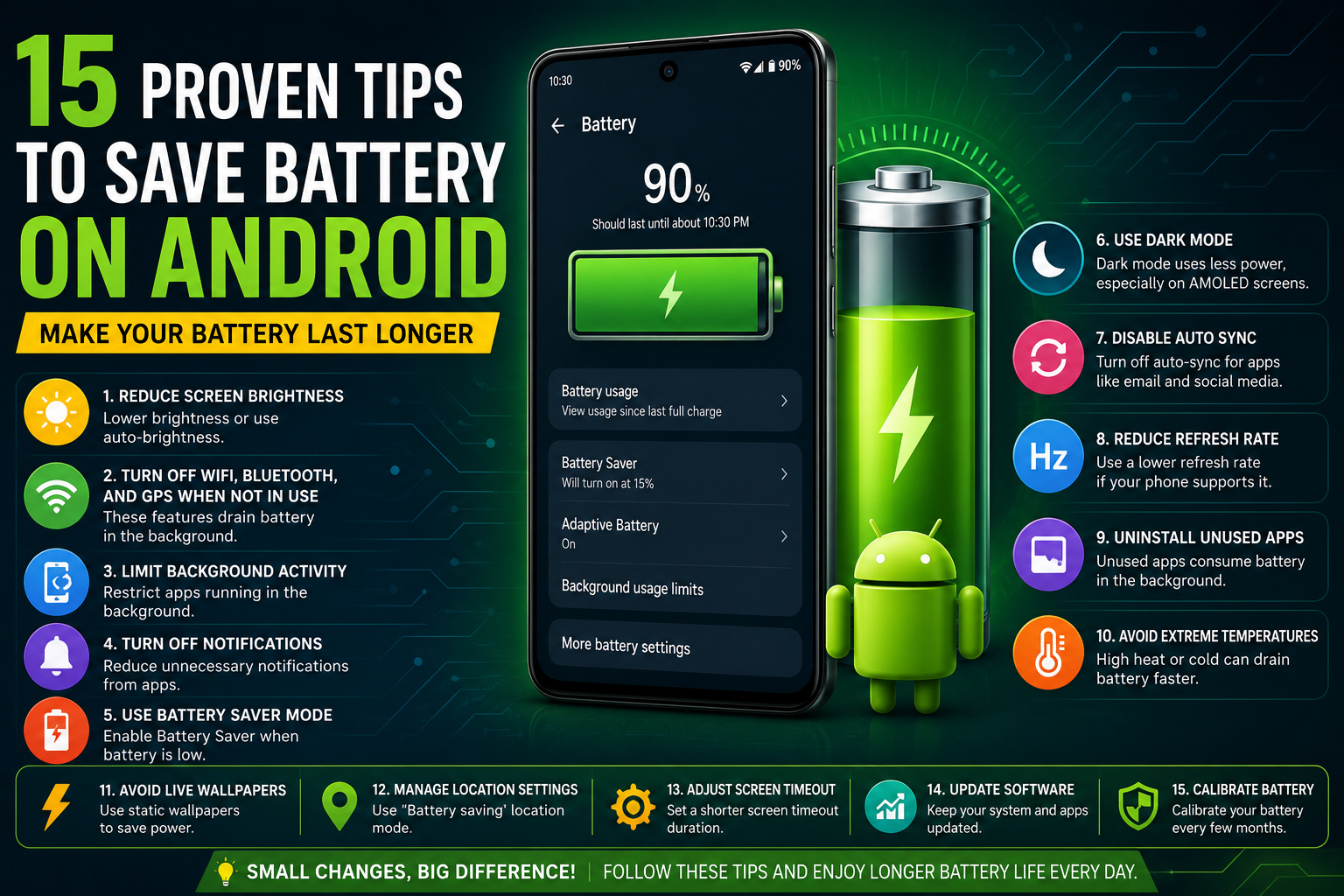
How to Reduce Battery Drain on Android: 15 Real Solutions
I used to be that person constantly scanning rooms for a wall socket. Every friend’s house, every office, every wedding hall, I’d clock the nearest outlet within thirty seconds of walking in. My battery anxiety was genuinely bad enough that I carried two power banks in my bag, just in case one died.
What actually fixed it wasn’t buying a bigger power bank. It was going through my phone’s settings one by one and cutting out the stuff that was quietly draining battery in the background without me realizing it. Some of these tips made a huge difference. A couple made almost none, and I’ll be honest about which is which instead of padding this list with filler.
Why Android Battery Drains So Fast
Before the tips, it helps to know what’s actually eating your battery, because “just close your apps” isn’t the real answer most of the time.
The biggest culprits are usually your screen (especially at high brightness) and apps constantly syncing data in the background even when you’re not using them. Add to that your phone’s radios — WiFi, Bluetooth, GPS, mobile data — all searching and connecting at once, plus notifications waking your screen up dozens of times a day.
Android is also just naturally less battery-efficient than iOS in one specific way: it historically allows more apps to run background processes at once. That’s part of why Google built Adaptive Battery into Android in the first place, to manage this instead of leaving it totally unchecked. We’ll get into using that properly below.
None of this means your phone is defective. It means most people run their phone with default settings that prioritize convenience over battery life. That’s a fair trade-off, until you actually need the extra hours.
Tips 1-5: Screen and Brightness
- Lower your brightness manually instead of relying only on auto-brightness. Auto-brightness is convenient but often runs brighter than necessary indoors. I keep mine around 40-50% for normal indoor use and only let it go higher outdoors.
- Reduce your screen timeout. Go to Settings > Display > Screen timeout and set it to 30 seconds instead of the default 1-2 minutes. Every extra minute your screen stays on after you’ve stopped looking at it is pure waste.
- Switch to dark mode, especially on AMOLED/OLED screens. On these display types, which most phones use now, black pixels are essentially turned off. So dark mode genuinely saves power, not just eye strain. Go to Settings > Display > Dark theme.
- Turn off always-on display if you don’t strictly need it. It’s a nice feature, but it means your screen is technically active 24/7 in some capacity. Turning it off and just tapping to check time saves more than people expect.
- Lower your screen resolution if your phone allows it. Many phones, especially Samsung Galaxy models, let you drop from their max resolution (like QHD+) down to FHD+ in Settings > Display > Screen resolution. Visually it’s barely noticeable day to day, but it reduces how hard your GPU works to render everything.
Tips 6-10: App and Sync Settings
- Turn on Adaptive Battery. This is one of Android’s most underrated features. It uses on-device machine learning to figure out which apps you actually use regularly and restricts background activity for the ones you don’t. Go to Settings > Battery > Adaptive Battery and make sure it’s toggled on. Heads up though, it needs one to two weeks of normal usage to fully learn your patterns, so don’t expect instant results the day you turn it on.
- Restrict background activity for specific battery-hungry apps. Go to Settings > Apps > select the app > Battery, and set it to “Restricted” for apps you rarely need instant notifications from. Facebook and most game apps are usually the worst offenders here.
- Turn off auto-sync for accounts you don’t need constantly updated. Go to Settings > Accounts, and disable sync for things like extra email accounts or cloud backup apps you don’t check often. Constant background syncing quietly drains more battery than most people realize.
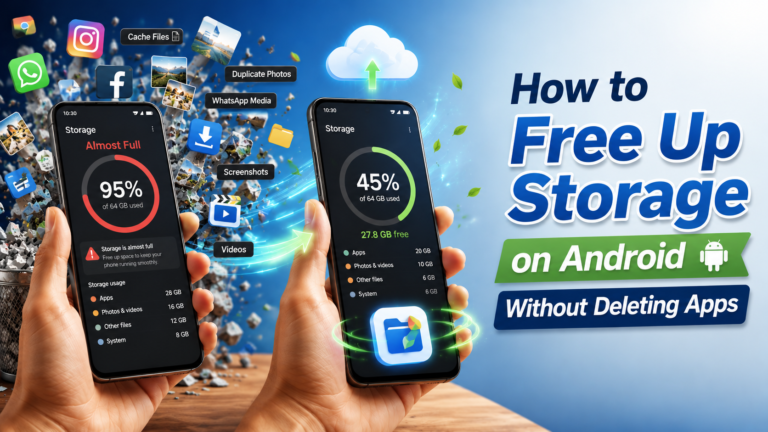
- Uninstall or disable apps you don’t actually use. Even sitting idle, some apps ping for updates, location, or notifications. If you haven’t opened an app in two months, it’s probably safe to remove. This pairs well with the storage cleanup tricks I covered separately, since unused apps eat both battery and space.
- Turn off unnecessary notifications. Every notification wakes your screen and processor briefly. Go to Settings > Notifications and turn off notifications for apps where you don’t need real-time alerts, like games or shopping apps sending promotional pings.
Tips 11-13: Network Settings
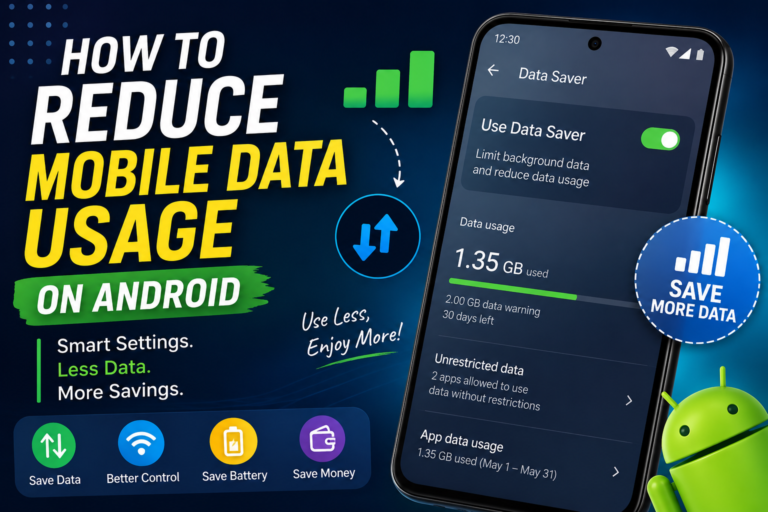
- Turn off WiFi and Bluetooth when you’re not using them, rather than leaving them constantly scanning for networks and devices. This matters more in areas with weak WiFi signal, since your phone works harder trying to maintain a poor connection.
- Switch to airplane mode in genuinely no-signal areas. If you’re somewhere with consistently bad network coverage, your phone burns extra battery constantly searching for signal. Airplane mode stops that entirely, though obviously you’ll miss calls and texts while it’s on.
- Avoid keeping mobile data and WiFi both active with poor signal on either. Weak signal is one of the sneakiest battery killers because your phone ramps up power to maintain the connection. If you’re in a low-signal zone and not actively using data, switching to WiFi-only or turning mobile data off temporarily helps.
Tips 14-15: Advanced Tricks
- Use Battery Saver mode strategically, not necessarily all the time (more on this below). Go to Settings > Battery > Battery Saver and either turn it on manually when you’re below a certain percentage, or set it to trigger automatically at a threshold like 20-30%.
- Check your battery usage breakdown regularly. Go to Settings > Battery > Battery usage to see which apps are consuming the most. Sometimes you’ll find a single app quietly eating 20-30% of your battery due to a bug or excessive background activity. The fix is either restricting it or updating the app.
Which Tips Actually Save the Most Battery
Being honest here, since not all 15 tips are equal.
Biggest impact: Lowering screen brightness and timeout (tips 1-2), enabling Adaptive Battery (tip 6), and restricting background activity on specific heavy apps (tip 7). Screen and background app management consistently account for the largest chunk of battery usage on most phones, so these tips move the needle the most.
Moderate impact: Dark mode on OLED screens (tip 3), turning off WiFi/Bluetooth when unused (tip 11), and checking your battery usage breakdown to catch rogue apps (tip 15).
Smaller but still worthwhile: Screen resolution reduction (tip 5), disabling unnecessary sync (tip 8), and notification management (tip 10). These help, just less dramatically than people expect.
Situational, not universal: Always-on display (tip 4) and airplane mode in dead zones (tip 12) only matter if those specific situations apply to you.
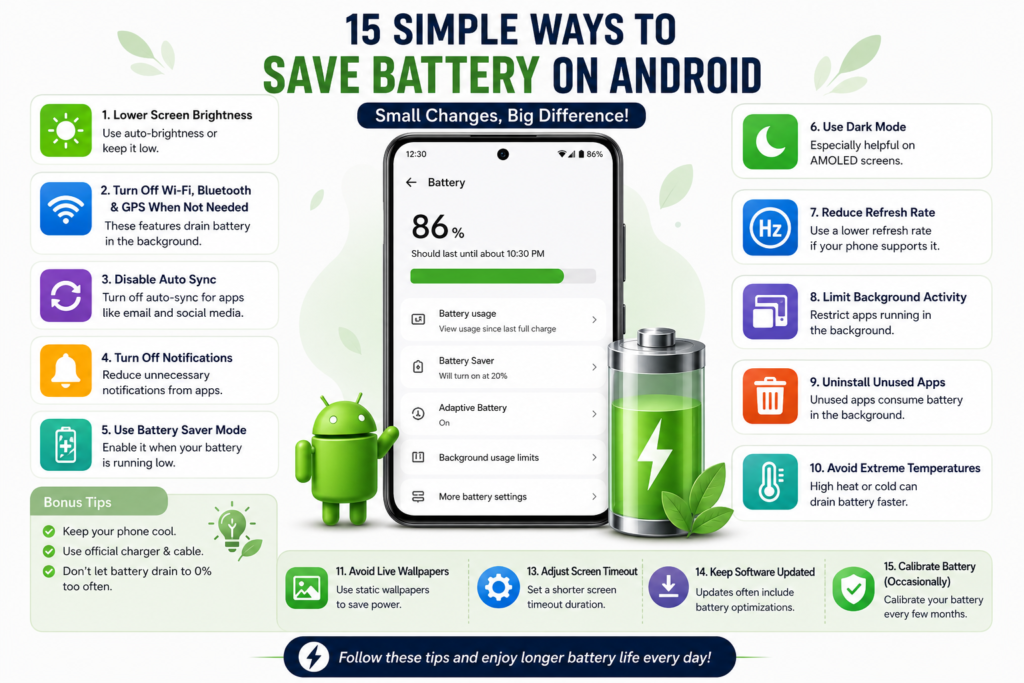
Should You Use Battery Saver Always?
Short answer: no, not permanently, and here’s why.
Battery Saver mode typically reduces background activity, limits location accuracy, disables some visual effects, and sometimes caps performance slightly. Running it 24/7 means dealing with delayed notifications constantly, occasional lag in demanding apps, and less accurate location tracking for maps and navigation apps.
The smarter approach is setting Battery Saver to kick in automatically at a specific percentage, like 20%. That way it’s a safety net for the end of your day, not something limiting your phone the whole time. If you know you’re heading into a long day without charging access (travel, an outdoor event, a long shift), turning it on manually from the start makes sense. Otherwise, let Adaptive Battery handle the day-to-day optimization instead, since it’s designed to work continuously without the trade-offs Battery Saver brings.
Battery Myths Debunked
Myth: Closing apps from recent apps saves battery. Mostly false, and can actually hurt battery life. When you swipe an app away, Android has to fully reload it from scratch the next time you open it. That uses more power than resuming an app that was properly suspended in memory. Android is designed to manage this itself. Let it.
Myth: Charging your phone overnight ruins the battery. Modern phones have built-in charge management that stops pulling power once they hit 100%. Leaving your phone plugged in overnight isn’t the battery killer it used to be years ago. Many newer phones also include adaptive charging that intentionally slows the last portion of charging overnight specifically to reduce battery stress.
Myth: Using your phone while charging damages the battery. This won’t meaningfully damage a modern lithium-ion battery. It might generate slightly more heat, which over a very long time isn’t ideal, but it’s not the dramatic damage people assume.
Myth: Task killer or “RAM cleaner” apps improve battery life. These apps largely do more harm than good on modern Android. They kill background processes that Android’s own system already manages intelligently. That can actually cause apps to restart more often and use more battery reloading themselves.
Myth: Fast charging degrades your battery significantly faster. Modern fast charging technology includes temperature and voltage management specifically to prevent this. It’s not risk-free over years of heavy daily fast charging, but it’s nowhere near as damaging as commonly believed, especially with phones released in the last few years.
Bringing It Together
You don’t need to apply all 15 of these obsessively every single day. Turn on Adaptive Battery once and let it run, lower your screen brightness and timeout as a permanent habit, restrict background activity on your 2-3 most battery-hungry apps, and set Battery Saver to trigger automatically around 20%. That combination alone handles most of what actually matters.
The rest of the list is there for the days you genuinely need to stretch every last percent, like a long travel day or an event where you know you won’t see a charger for hours. If you’re also dealing with general phone slowdown alongside battery issues, my guide on speeding up Android covers the overlap between the two. Save the bigger cleanup, checking your battery usage breakdown and reviewing which apps to restrict or remove, for once a month rather than something you’re constantly fiddling with.