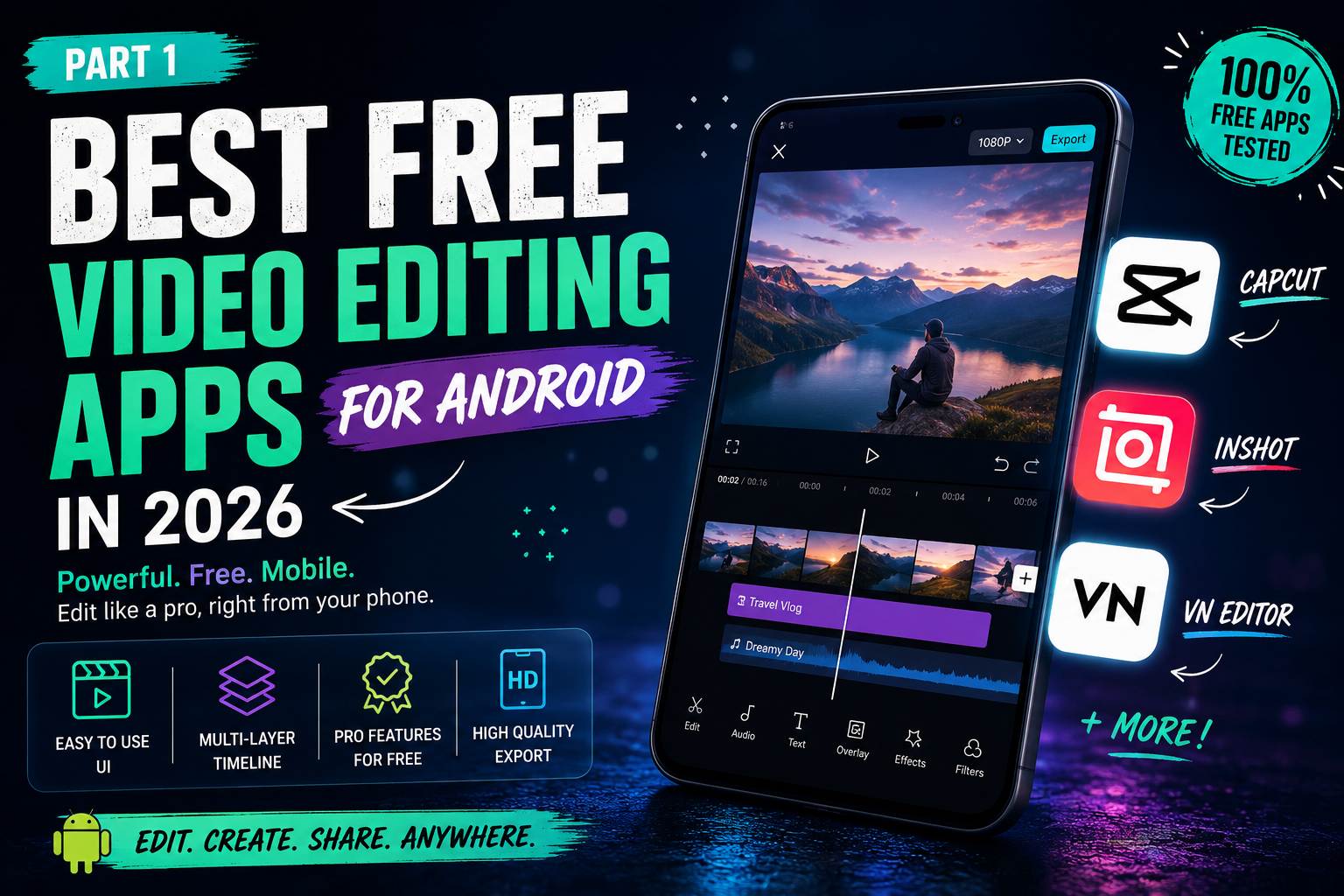
Best Free Video Editing Apps for Android in 2026
I still remember spending nearly an hour editing a birthday video for my little nephew. I added music, trimmed awkward clips, and finally hit Export—only to discover a huge watermark covering the corner of the video. All that effort, and it looked like a free app advertisement instead of a family memory.
That’s when I realized something important: not every “free” video editor is actually free. Some hide essential features behind subscriptions, while others bombard you with ads or lock high-quality exports.
Over the past few years, I’ve tested dozens of Android video editing apps, from quick social media editors to apps capable of producing YouTube-quality videos. Some genuinely impressed me, while others were frustrating enough to uninstall within minutes.
For everyday editing, though, I rarely felt restricted. One thing worth knowing: video editing apps and their exported files can eat storage fast, especially with multiple projects saved at once — I
covered how to manage that in my Android storage guide.
Quick Recommendations
| Need | Best Choice |
|---|---|
| 🏆 Best Overall | CapCut |
| 🎬 Best for YouTube | VN Editor |
| 📱 Best for Instagram & TikTok | InShot |
| 🚫 Best Watermark-Free Editor | VN Editor |
| 🎥 Best Free 4K Export | KineMaster |
| 👶 Best for Beginners | CapCut |
What Makes a Good Free Video Editor?
Before downloading the first app you see, check these five things.
✅ Watermark Policy
Some apps look amazing until you export your video and find their logo stamped across it.
✅ Multi-Track Timeline
A proper editor should let you combine videos, music, text, stickers, and effects—not just trim clips.
✅ Export Quality
1080p should be the minimum in 2026. If an app limits you to 720p, you’ll notice the difference.
✅ Performance
A good editor shouldn’t freeze every time you add a transition.
✅ Free Features That Are Actually Free
Many apps advertise AI tools but lock them behind expensive subscriptions after one or two uses.
1. CapCut — Best Overall Free Video Editor
⭐⭐⭐⭐⭐ Rating: 9.8/10
If someone asked me to recommend just one free Android video editor, CapCut would still be my first suggestion.
Developed by ByteDance (the company behind TikTok), CapCut manages to offer features that many desktop editors charge for. Even on its free plan, you get a professional multi-track timeline, keyframe animation, green-screen support, speed ramping, auto captions, music, sound effects, and clean 1080p exports.
What I Like
✔ Clean and beginner-friendly interface
✔ Powerful editing tools
✔ Huge music library
✔ Auto captions
✔ Smooth performance on most phones
✔ No watermark on normal exports
Things to Know
- Free exports are limited to 1080p.
- Advanced AI tools and 4K exports require CapCut Pro.
- Using certain Pro templates or AI features may add a watermark.
The good news? If you stick to the standard editing tools, your exported videos remain watermark-free.
My Experience
I edited a one-minute travel montage using CapCut on a mid-range Android phone, complete with transitions, background music, text animations, and slow-motion effects.
Despite adding multiple layers, the app remained responsive throughout the project. The only limitation I encountered was when I tried using AI enhancement—it immediately prompted me to upgrade to Pro.
For everyday editing, though, I rarely felt restricted.
Best For
Choose CapCut if you:
- ✔ Create TikTok videos
- ✔ Upload Instagram Reels
- ✔ Make YouTube Shorts
- ✔ Want professional-looking edits without a steep learning curve
Skip it if:
- ❌ You need free 4K exports.
- ❌ You rely heavily on advanced AI tools.
Quick Verdict
CapCut offers the best balance between ease of use and professional features. For beginners and casual creators, it’s difficult to beat.
2. InShot — Best for Social Media Creators
⭐⭐⭐⭐☆ Rating: 9.2/10
Before CapCut became as popular as it is today, InShot was the app I recommended to almost everyone.
It’s lightweight, incredibly easy to use, and perfect for creating Instagram Reels, TikTok videos, WhatsApp Status updates, or short YouTube clips.
One feature I still love is how quickly you can switch between different aspect ratios. Need a square Instagram post? One tap. A vertical Reel? Another tap. Everything feels intuitive, even if you’ve never edited a video before.
What I Like
✔ Fast and simple interface
✔ Great for beginners
✔ Excellent social media templates
✔ Smooth performance on lower-end phones
✔ Easy resizing for different platforms
Things to Know
Unlike CapCut, InShot places a small watermark on exported videos by default.
You have two options:
- 🎥 Watch a short ad before exporting.
- 💎 Upgrade to InShot Pro.
If you only edit occasionally, watching an ad isn’t a big deal. But if you’re publishing content every day, those repeated prompts quickly become annoying.
My Experience
I still use InShot whenever I need to make a quick family video or trim clips before sending them on WhatsApp.
The editing experience is fast and frustration-free, but the watermark is the one thing that keeps me from recommending it as my top choice.
Best For
Choose InShot if you:
- ✔ Create Instagram content
- ✔ Edit short videos
- ✔ Prefer a simple interface
- ✔ Have an older Android phone
Skip it if:
- ❌ You want permanent watermark-free exports.
- ❌ You need advanced editing features.
Quick Verdict
If simplicity matters more than advanced tools, InShot is still one of the easiest editors available. Just be prepared to either watch an ad before exporting or upgrade if you edit videos regularly.
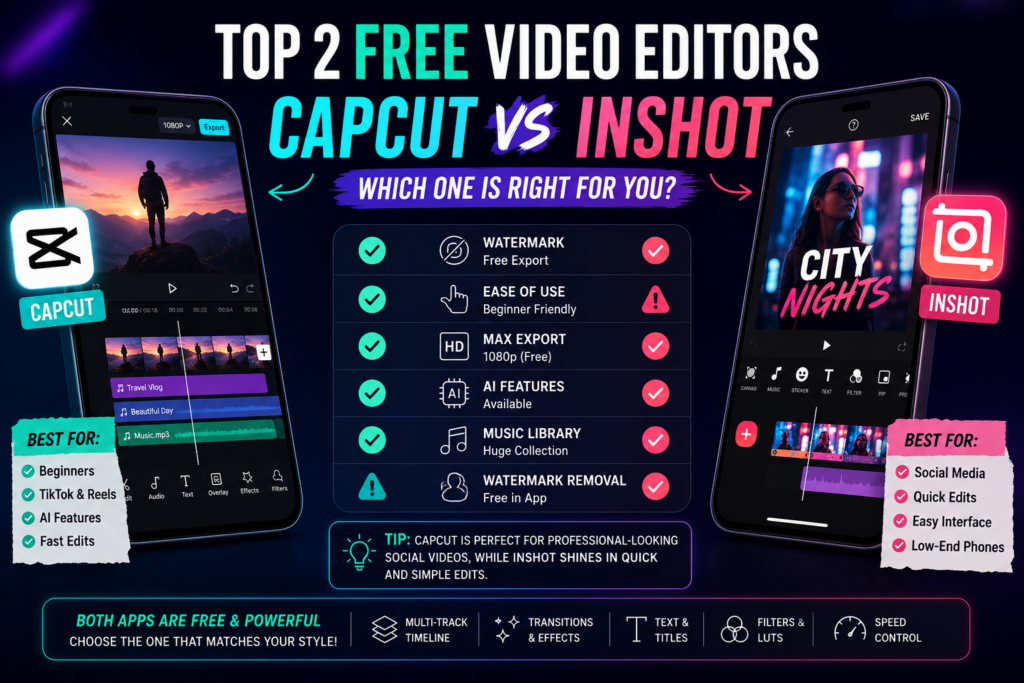
Quick Comparison
| Feature | CapCut | InShot |
|---|---|---|
| Free Watermark | ✅ Yes (manual editing) | ⚠️ Ad required |
| Max Free Export | 1080p | 1080p |
| AI Features | ✅ Yes | Limited |
| Ease of Use | ⭐⭐⭐⭐⭐ | ⭐⭐⭐⭐⭐ |
| Best For | All Creators | Social Media |
| Overall Rating | 9.8/10 | 9.2/10 |