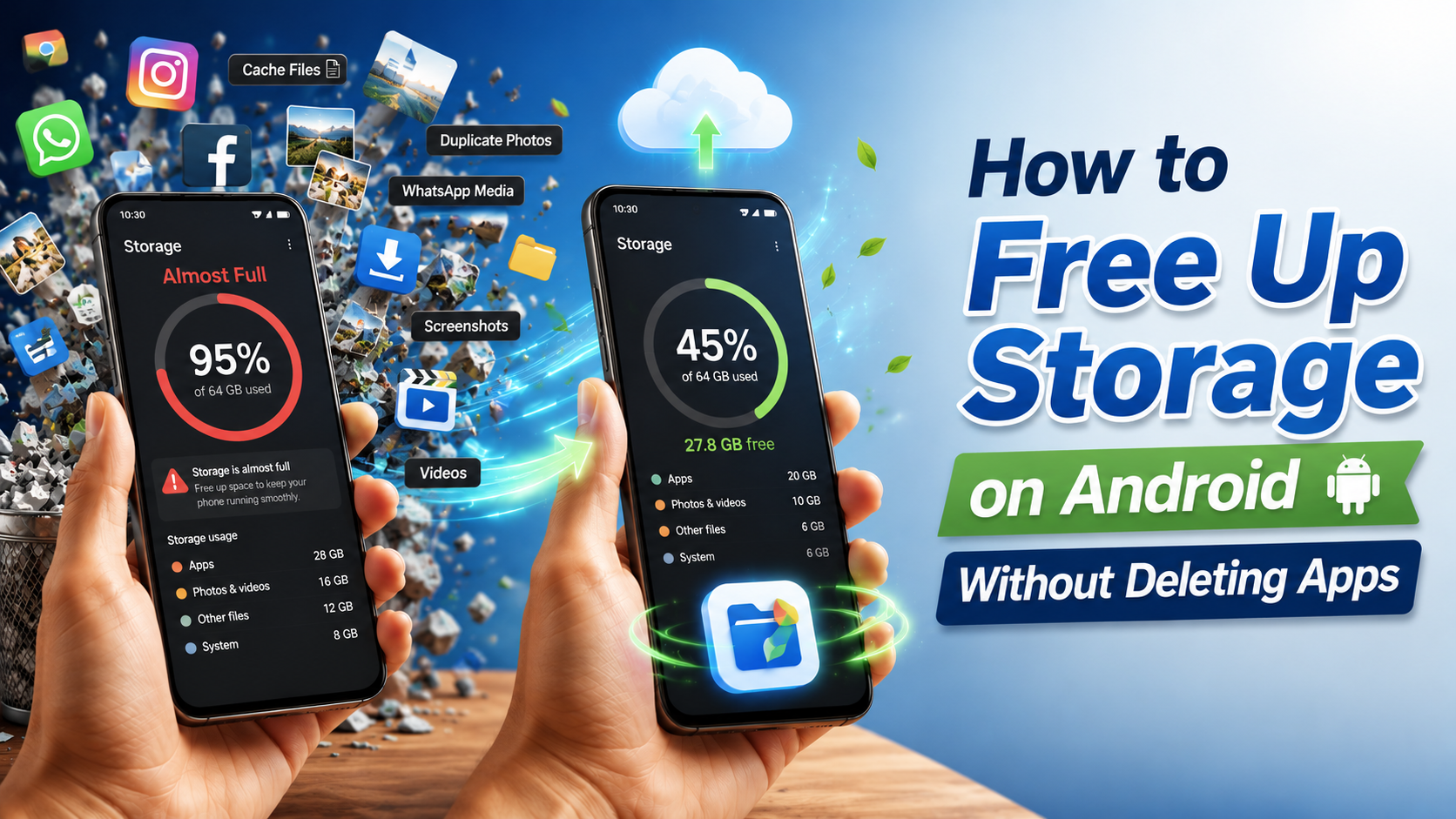
How to Free Up Storage on Android Without deleting apps
My phone hit “Storage Full” right in the middle of recording my nephew’s birthday party. I had to stop, delete a few random videos I didn’t even remember taking, just to get 30 more seconds of recording space. Everyone was waiting, my sister was giving me that look, and I was crouched in the corner deleting stuff off my phone like an idiot.
That was the last time I let ‘Storage Full’ catch me off guard. Since then I’ve figured out a system that keeps my 64GB phone running fine without ever having to uninstall the apps I actually use. None of this involves buying extra storage or rooting your phone. Just knowing where the junk actually hides.
Why Storage Fills Up Faster Than You Expect
Here’s what nobody tells you when you buy a phone. The listed storage (say, 64GB or 128GB) isn’t what you actually get to use. A chunk of it is taken up by the Android operating system itself before you even install a single app, usually somewhere between 8-15GB depending on the phone.
Then apps like WhatsApp, Instagram, and Facebook don’t just take up their install size, they keep accumulating cache, downloaded media, and temporary files every single day you use them. WhatsApp alone can quietly grow to several GB just from media people send you that gets auto-downloaded.
Add camera photos and videos (especially if you shoot in 4K or take a lot of burst shots), downloaded PDFs and files you forgot about, offline maps you activated once for a trip two years ago, and duplicate photos from screenshots and re-saves. It piles up without you noticing until that dreaded notification shows up.
The good news: almost none of this actually requires deleting apps. It’s mostly cleanup, not sacrifice.
Clear App Cache vs Data — The Difference (This Confuses Everyone)
I used to think “clear cache” and “clear data” were basically the same thing. They’re not, and mixing them up can actually cause problems.
Cache is temporary storage an app creates to load things faster next time… In fact, clearing cache is completely safe. You won’t lose logins, settings, or saved data. Worst case, the app just takes a second longer to reload something the first time after you clear it.
Data includes your actual saved information within the app — your login session, settings, saved files, chat history in some cases. Clearing data can log you out of the app or wipe local settings, so you generally want to avoid this unless you’re troubleshooting a broken app.
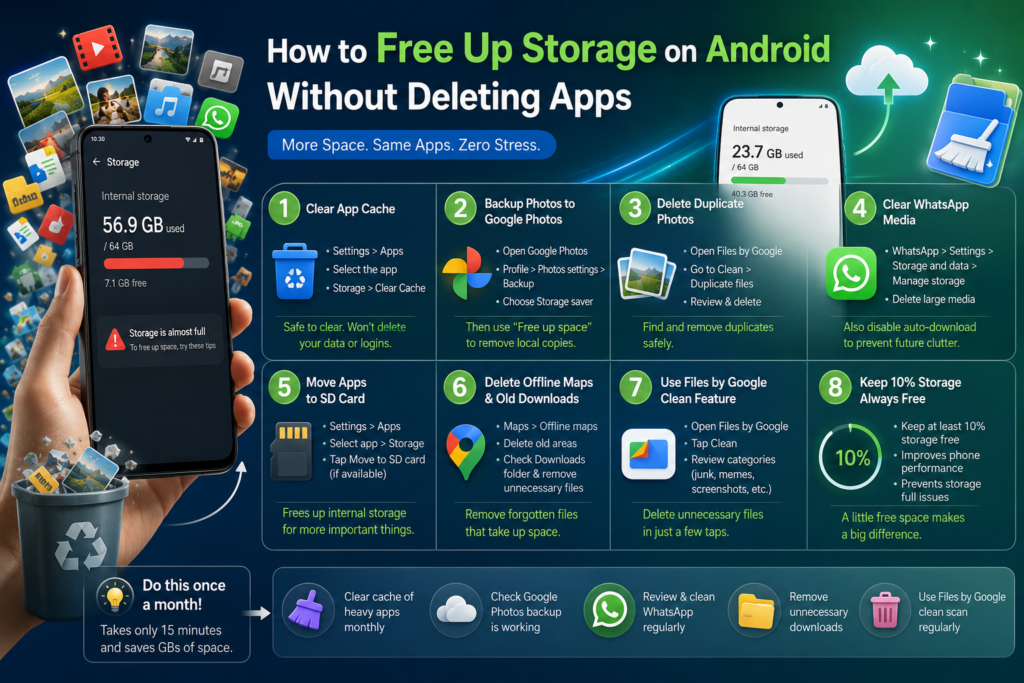
How to clear cache safely:
- Go to Settings
- Tap Apps
- Select the app (start with WhatsApp, Instagram, Chrome, Facebook — usually the biggest offenders)
- Tap Storage
- Tap Clear Cache only — leave “Clear Data” alone
Do this monthly for your 5-6 heaviest apps and you’ll be surprised how
many GB you get back without losing anything. If you want the full
breakdown of cache clearing along with other speed fixes, I covered
that in more detail in my guide on speeding up Android phones.
Move Photos to Google Photos (Free Tier)
This is probably the single biggest space-saver, and most people don’t set it up properly.
Every Google account comes with 15GB of free cloud storage, shared across Gmail, Google Drive, and Google Photos. If you back up your camera photos and videos to Google Photos, you can then safely delete the originals off your phone since they’re saved in the cloud.
The setting to actually pay attention to is backup quality:
- Open Google Photos
- Tap your profile picture (top right)
- Go to Photos settings > Backup
- Select Backup quality (sometimes shown as “Photo and video quality”)
- Choose Storage saver instead of Original quality
Storage saver compresses your photos slightly (down to about 16MP) but keeps them looking essentially the same for normal viewing and sharing, while using far less of your free 15GB. Original quality keeps full resolution but eats through your free storage way faster — usually only worth it for photos you genuinely need in full quality, like ones you plan to print.
Once photos are backed up and you see the cloud checkmark icon on them, go to Free up space inside the Google Photos app (usually under the menu or profile settings) and it’ll automatically remove the local copies of anything already safely backed up.
Delete Duplicate Photos — Free Built-In Tool
I didn’t realize how many duplicate photos I had until I checked. Screenshots you took twice, the same photo saved from WhatsApp and also taken on camera, burst shots where you kept 8 near-identical frames instead of picking one.
Rather than installing a random third-party “duplicate finder” app (a lot of these are sketchy and ask for way too many permissions), Google’s own Files by Google app has a built-in, genuinely reliable duplicate detection feature.
- Install Files by Google from the Play Store if you don’t have it already
- Open the app, go to the Clean tab
- Tap Duplicate files
- It’ll scan and group identical files together
- Review and select the duplicates you want to remove (it’s smart enough to suggest keeping one copy automatically)
- Tap delete
I found almost 1.2GB of pure duplicates on my phone the first time I did this. Completely free, no shady permissions, and it’s made by Google so you’re not handing your photos over to some unknown developer.
Clear WhatsApp Media the Right Way
WhatsApp is genuinely one of the worst storage hogs on most Android phones here, mainly because of auto-downloaded media in group chats. Family groups sending 50 forwarded videos a day adds up fast.
Here’s the proper way to clean it without losing important chats:
- Open WhatsApp
- Tap the three dots (top right) or go to Settings
- Tap Storage and data
- Tap Manage storage
- You’ll see a breakdown by chat, sorted by size
- Tap into the largest chats (usually group chats)
- It’ll show media grouped by size — review and select videos/images you don’t need
- Tap delete
Also worth doing: go into Settings > Storage and data > Media auto-download and turn off auto-download for videos on mobile data, and consider limiting it on WiFi too. This alone stopped my WhatsApp storage from ballooning every week.
Move Apps to SD Card (If Your Phone Supports It)
If your phone has a microSD card slot, this is an easy win for apps you use less frequently but still want installed.
- Go to Settings > Apps
- Select the app you want to move
- Tap Storage
- If the option is available, you’ll see Change or Move to SD card
- Tap it and confirm
Important honest note: not every app supports this, and system apps or most pre-installed apps generally can’t be moved. Also, apps on SD card can run slightly slower since SD card read/write speeds are usually lower than internal storage. I use this mainly for apps I open occasionally, not my daily-use apps like WhatsApp or banking apps.
Delete Offline Maps and Old Downloads
This one’s sneaky because it’s easy to forget these even exist.
Offline Google Maps: if you downloaded an area for a trip, it just sits there indefinitely unless you remove it.
- Open Google Maps
- Tap your profile picture
- Tap Offline maps
- You’ll see every downloaded area listed with its size
- Tap the three dots next to old ones and select Delete
Downloads folder: Genuinely check this. PDFs, APK files, random images shared in WhatsApp groups that got saved automatically — this folder becomes a graveyard of forgotten files.
- Open Files by Google (or your phone’s default Files app)
- Go to the Downloads category
- Sort by size or date
- Delete anything you don’t recognize or no longer need
I found a 400MB PDF lecture recording I downloaded a full year ago sitting untouched in there.
Use Files by Google for Hidden Junk
Beyond duplicates, Files by Google has a proper Clean section that’s worth checking regularly:
- Open the app and tap Clean
- It shows categorized suggestions: junk files, memes/forwarded images, screenshots, unused apps (this shows unused apps but won’t force you to delete them — you choose), and large files
- Tap into each category, review what it found
- Select what you’re comfortable deleting and confirm
The “junk files” category alone often includes leftover cache from apps you’ve already uninstalled, temporary system files, and empty folders. On phones I’ve cleaned up for family members, this section alone regularly freed 1-3GB without touching a single app they actually use.
Bringing It All Together
None of these steps require deleting a single app you rely on daily. The real trick is realizing storage doesn’t disappear because of the apps themselves, it disappears because of what those apps quietly collect over months of use — cache, media, duplicates, forgotten downloads.
Set a reminder to run through this list once a month. Clear cache on your heaviest apps, check WhatsApp storage, run Files by Google’s clean scan, and make sure Google Photos backup is actually working. Takes maybe 15 minutes total, and it’s a lot less stressful than deleting things in a panic while everyone’s waiting for you to finish recording a video. No more panicking mid-recording, no more crouching in a corner deleting videos while everyone waits.