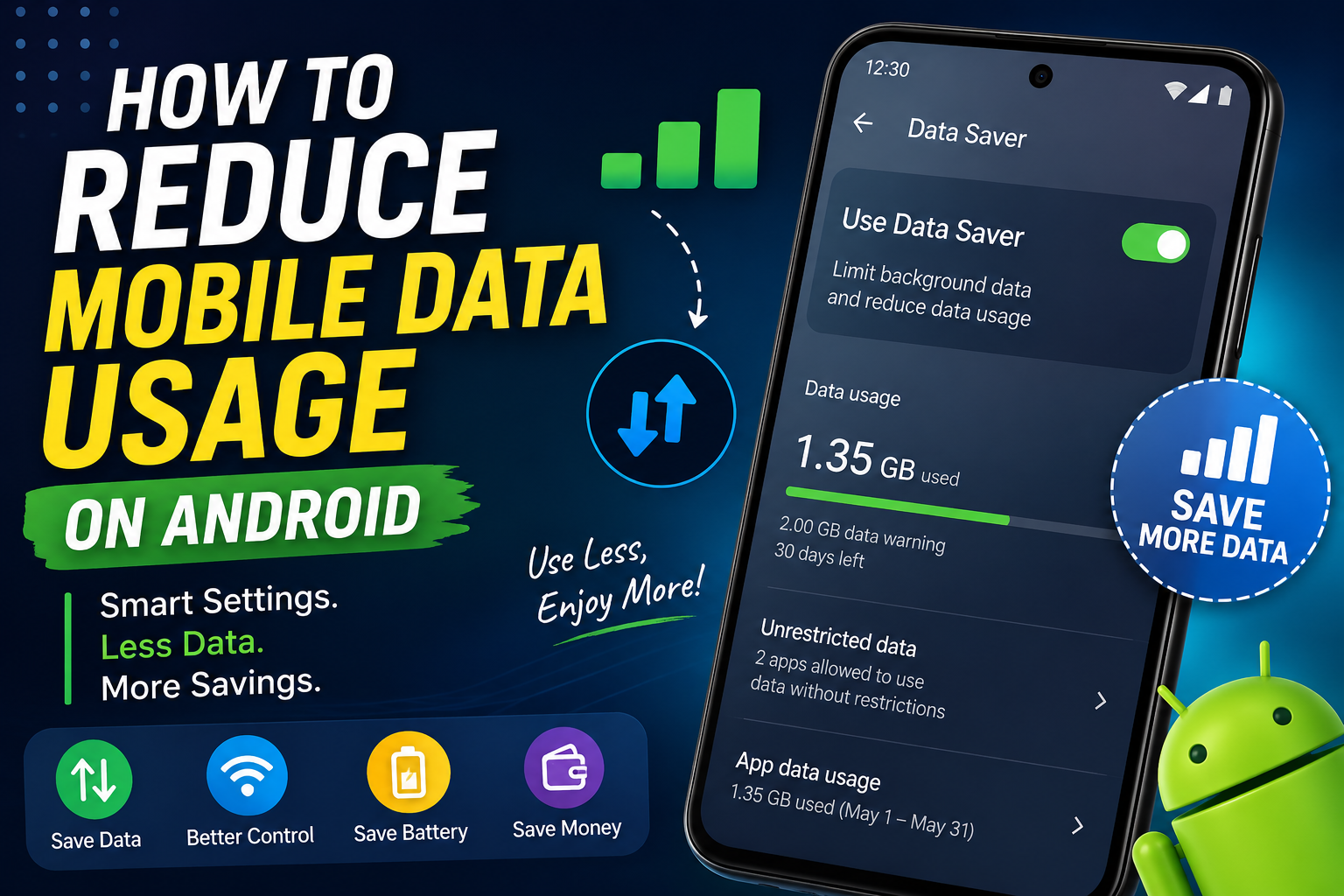
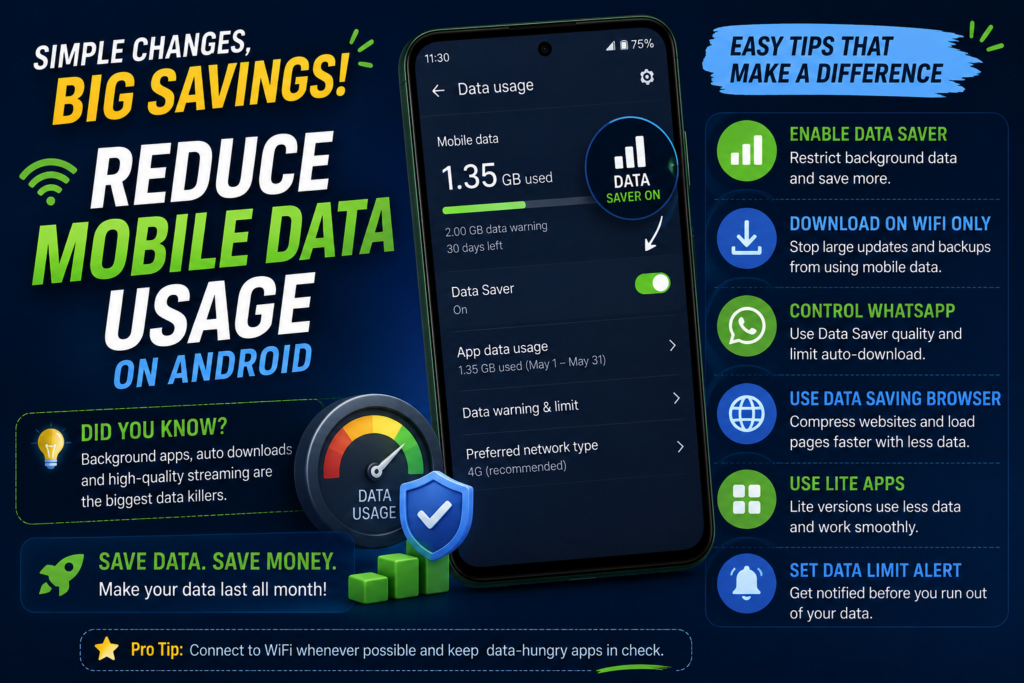
Turn On Data Saver Mode (The “Set It and Forget It” Fix)
If you don’t want to micromanage every single app, Android has a much easier solution: Data Saver Mode.
Think of it as a security guard for your mobile data. Instead of checking every app individually, it automatically blocks most apps from quietly using data in the background.
Here’s how to enable it:
Open Settings
Tap Network & Internet
Select Data Saver
Turn it On
💡 Good to Know
Once Data Saver is enabled, apps can still use mobile data while you’re actively using them. The biggest difference is that they stop consuming data behind the scenes when your phone is sitting in your pocket.
What if an App Stops Working?
Some apps—like Google Maps, WhatsApp, or certain messaging apps—may need background access to work properly.
That way, everything else stays restricted while your important apps continue working normally.
You’ll probably notice one bonus too: websites stop loading every image automatically, and videos won’t autoplay. It might seem like a small change, but it can save hundreds of megabytes over a month.
Switch to Lite Apps (You’ll Barely Notice the Difference)
Here’s a quick question.
Do you really need the full Facebook app just to scroll your feed or reply to messages?
For most people, the answer is no.
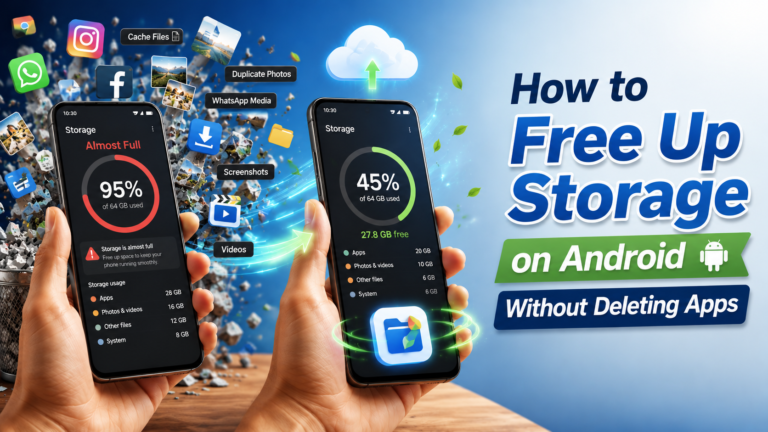
If Facebook or Messenger are among your most-used apps, switching to the Lite version can easily save hundreds of megabytes every month. Lite apps also tend to take up far less storage space than their full-sized counterparts — useful if your phone is already running low on room, something I covered in my Android storage guide.
Why Lite Apps Are Worth Trying
✔ Faster loading
✔ Smaller app size
✔ Lower battery usage
✔ Significantly less mobile data
If Facebook or Messenger are among your most-used apps, switching to the Lite version can easily save hundreds of megabytes every month.
Stop Large Downloads Before They Empty Your Data Plan
Have you ever opened your phone only to discover Google Photos backed up 300 photos over mobile data?
Or noticed your apps updating automatically while you were away from WiFi?
Those silent downloads add up surprisingly fast.
Take five minutes to change these settings once.
Play Store Updates
Open Play Store
Tap your profile picture
Go to Settings
Network Preferences
Select Auto-update apps
Choose Over WiFi only
Google Photos Backup
Open Google Photos
Tap your profile picture
Photos Settings
Backup
Turn Back up using mobile dataOff
Spotify, YouTube & Other Streaming Apps
Most streaming apps include a Download over WiFi only option inside their settings.
It’s worth checking every app you use regularly.
Quick Tip: Once these settings are enabled, you never have to think about them again. Your downloads simply wait until you’re connected to WiFi.
Make WhatsApp Use Less Data
If you’re active in family groups or work chats, WhatsApp could easily be one of your biggest data users.
Especially when everyone starts sharing photos, memes, and long videos.
Fortunately, WhatsApp includes its own data-saving settings.
Here’s What to Change
Open WhatsApp
Go to Settings
Tap Storage and Data
Under Media Upload Quality, choose Data Saver
While you’re there, check Media Auto-Download too.
A good setup is:
✅ Photos → WiFi Only
✅ Videos → WiFi Only
✅ Documents → Ask Every Time
That one change can stop dozens of unnecessary downloads every week.
Let Your Browser Save Data for You
If you spend a lot of time reading news, blogs, or browsing websites, your browser alone can use a surprising amount of mobile data.
Many browsers include built-in data compression that loads lighter versions of webpages without making them feel noticeably different.
In Chrome
Tap the three dots
Open Settings
Look for Lite Mode or Data Saver(availability depends on your browser version)
Enable it if available
The browser compresses images and webpage content before it reaches your phone, meaning you use less data every time you browse.
Set a Monthly Data Warning (Your Future Self Will Thank You)
Here’s something most people never do…
…and then they’re shocked when they receive the “You’ve used all your data” message.
Instead, let Android warn you before that happens.
Set It Up
Open Settings
Network & Internet
Data Usage
Open Data Warning & Limit
Turn on Data Warning
Set it to around 80–90% of your monthly data plan
You can also enable Data Limit, which automatically turns off mobile data after reaching your chosen limit on supported devices.
Example: If your monthly plan is 20GB, set the warning around 16GB. That gives you enough time to switch to WiFi and avoid buying an expensive extra data package.
The Bottom Line
If you only remember one thing from this guide, make it this:
Background apps are usually the biggest reason your mobile data disappears so quickly.
Everything else—Lite apps, WiFi-only downloads, WhatsApp compression, browser data saving, and monthly alerts—works together to stretch your data even further.
The best part?
You only need to spend about 10 minutes setting everything up once.
After that, your Android quietly saves data in the background while you use your phone normally. No constant tweaking, no giving up your favorite apps—just a mobile data plan that lasts a lot longer.
Is Your Email Helping You Get Hired… or Holding You Back? Take a second and look at your current email address. Is it something like: ❌ coolgamer99420@gmail.com ❌ princess_angel2007@gmail.com ❌ footballking123@gmail.com If the answer is yes… You’re not alone. I once applied for a freelance project using an email address I’d created back in Year…
Two years ago my Redmi phone got so slow that opening WhatsApp took a solid 4-5 seconds. I remember sitting in a rickshaw, trying to reply to a client, and just staring at a frozen screen while the guy asked me for directions. That’s the moment I decided I wasn’t going to just “live with…
My phone hit “Storage Full” right in the middle of recording my nephew’s birthday party. I had to stop, delete a few random videos I didn’t even remember taking, just to get 30 more seconds of recording space. Everyone was waiting, my sister was giving me that look, and I was crouched in the corner…
I used to be that person constantly scanning rooms for a wall socket. Every friend’s house, every office, every wedding hall, I’d clock the nearest outlet within thirty seconds of walking in. My battery anxiety was genuinely bad enough that I carried two power banks in my bag, just in case one died. What actually…
This is Part 2 of our phone migration series. If you haven’t already, start with Part 1, which covers Google Backup and Samsung Smart Switch, before continuing here. Method 3: Xiaomi Mi Mover (Best for Xiaomi, Redmi & POCO Phones) Difficulty: ★☆☆☆☆ Time Required: 15–30 minutes Works With: Xiaomi, Redmi and POCO devices If your…
You are working on your laptop when the home Wi-Fi suddenly stops. The router lights are blinking, restarting it changes nothing, and you still need to send a file or finish an assignment. Then you remember that your Android phone has mobile data. Within a minute, your phone can act like a small Wi-Fi router…